iPad · second display for Mac

An iPad that becomes a real second screen.

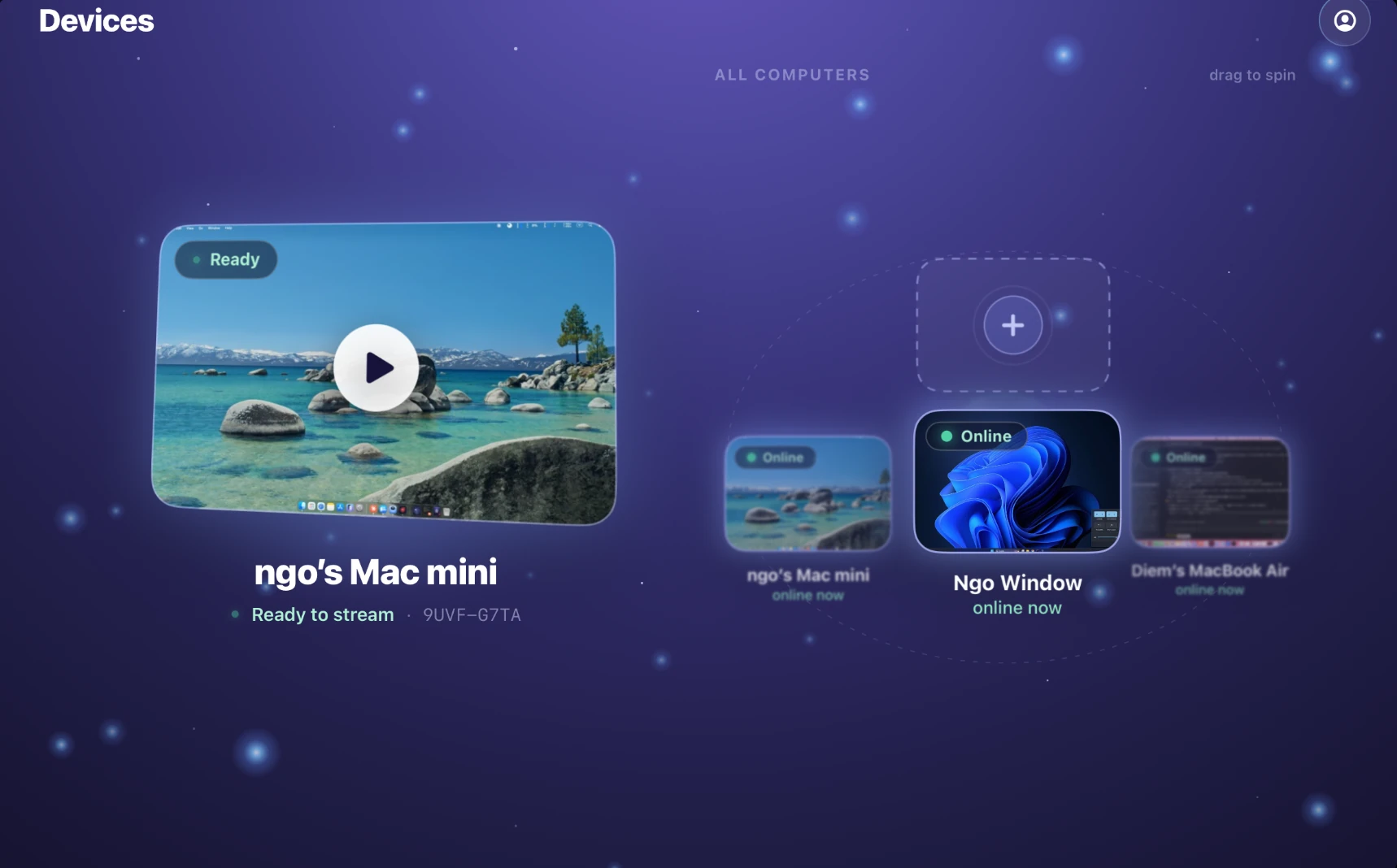
When the iPad connects, the host Mac creates a real virtual display for it — not a mirror, not an AirPlay surface. macOS sees a new monitor at the iPad’s exact Retina resolution. Apps can be dragged onto it and stay there. Finder treats it as a display. The cursor crosses the bezel as if there were a real second monitor plugged in. Wireless, free, no Apple ID matching, no Sidecar limitations.

Not a mirror

A second display, not a mirror.

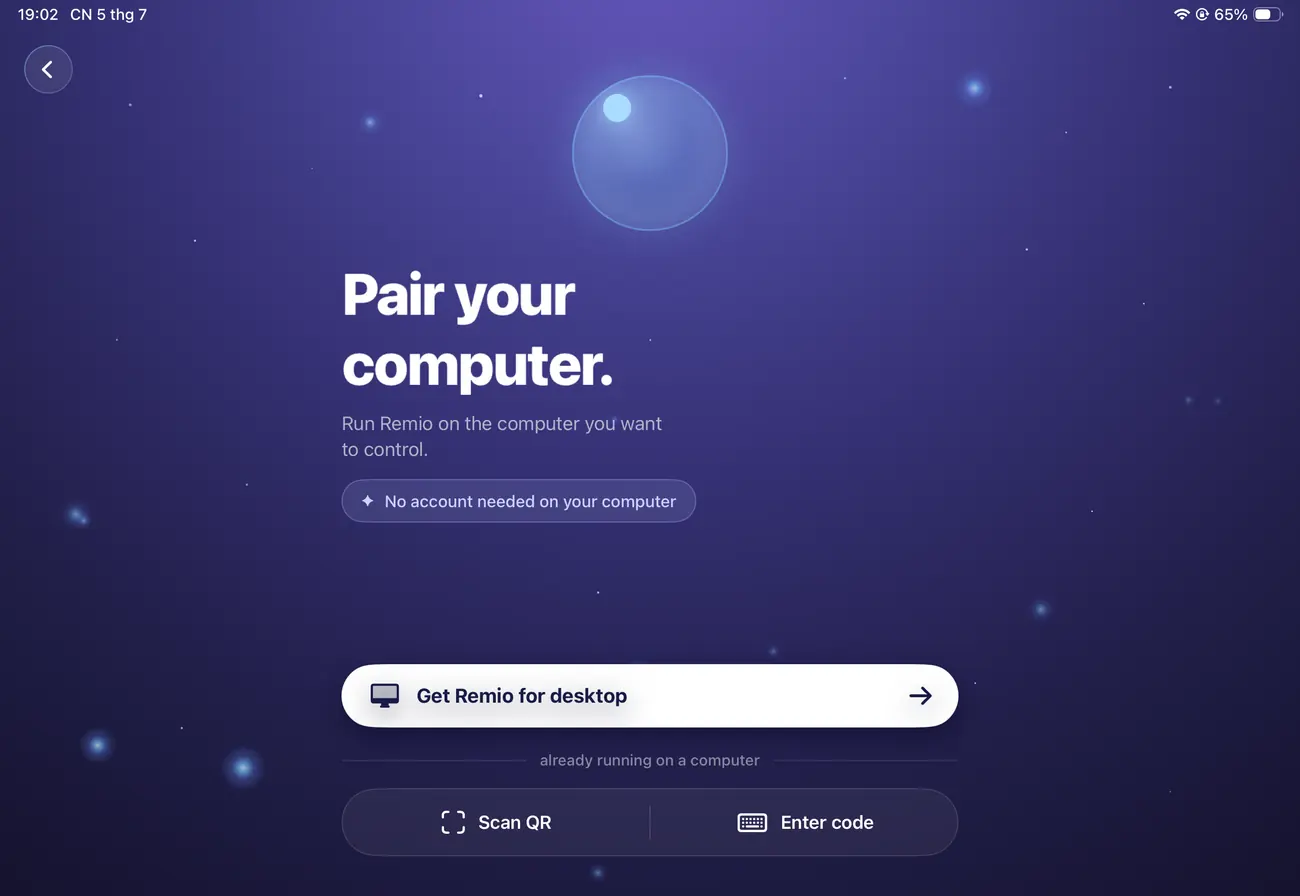
When the iPad connects to the Mac, the Mac host creates a virtual display sized exactly for the iPad. From the second the link comes up, macOS treats the iPad like any other monitor you plugged in over USB-C — with its own workspace, its own resolution, its own menu bar position.

01
Step 01 — macOS sees a monitor

A separate workspace, not a copy of the Mac screen.

The iPad shows its own desktop. Drag Safari, Mail, or Logic onto it from your built-in Mac screen and the window stays there permanently — click away on the Mac, the window remains on the iPad. Quit the connection and macOS remembers the layout for next time, just as it does with a USB monitor.

Mission Control includes the iPad as a separate display. Spaces work on it. Hot corners work on it. Stage Manager arranges windows on it. None of this is special-cased — the operating system genuinely thinks the iPad is hardware plugged in to the Mac.

02
Step 02 — The cursor crosses the bezel

Move your finger off the right edge of the Mac — it appears on the iPad.

The cursor flows from the Mac to the iPad the same way it flows between two monitors plugged in side by side. Arrange the displays in System Settings » Displays to set which side the iPad lives on, and the cursor obeys. Move it back, and the Mac is in control again. No clicking, no switching modes, no “take over input” toggle.

Cursor sizes match exactly. A 32-point macOS cursor on the Mac is a 32-point cursor on the iPad — no shrinking, no growing as it crosses. The virtual display is sized in real macOS points, not stretched pixels.

03
Step 03 — Retina sharp

2× HiDPI rendering at the iPad’s native pixel density.

An iPad Pro 11” M4 with its 2420×1668 pixel display shows the Mac second screen at the iPad’s exact native resolution. Text is sharp at any zoom level. Icons aren’t stretched. Photos look correct. The virtual display is rendered at 2× HiDPI by default so every pixel of the iPad screen is doing real work, not enlarging a smaller image.

Rotate the iPad from landscape to portrait — the virtual display rotates with it and the Mac re-arranges windows for the new aspect ratio. Resize the Remio window on the iPad — the virtual display resizes too, dynamically, with no reconnect.

vs Apple Sidecar

How it stacks up against Apple Sidecar.

Sidecar was Apple’s answer to second-screen-on-iPad in 2019, but the restrictions make it unusable for many people: same Apple ID required on both devices, a short list of supported iPads and Macs, no support for older hardware. Remio removes the gates.

Capability Remio Apple Sidecar
Compatibility
Minimum iPad versioniPad Pro, iPad Air 3+, iPad 6+, iPad mini 5+
Minimum Mac versionSpecific Mac models from 2016 or later
Apple ID requirementSame Apple ID required on both devices
iCloud sign-inRequired on both
Two-factor authenticationRequired on the Apple ID
Display behaviour
Acts as a real second monitorYes
Mirror mode optionYes
Dynamic resize while connectedNo — fixed at connect time
Retina at 2× HiDPIYes
Input
Apple Pencil pressureYes
Apple Pencil tiltYes
Finger touch on second displayLimited — Apple restricts touch
Bluetooth keyboard pass-throughYes
Network and reach
Same network as MacYes (only)
Mac on a different networkNo
CostFree with Apple hardware

Bottom line: if Sidecar works for you and your hardware is on Apple’s list, Sidecar is excellent. If you have an older iPad, an older Mac, separate Apple IDs (work vs personal), or you want to connect to a Mac at the office from an iPad at home, Remio fills the gap with the same second-monitor behaviour.

Apple Pencil

Apple Pencil works on apps that don’t even know about iPadOS.

This is the part that surprises people. When you drag Photoshop, Final Cut, DaVinci Resolve, or Affinity Photo onto the iPad screen and start drawing with a Pencil, the Mac apps don’t see a touchscreen — they see a graphics tablet. Pressure, tilt, and barrel-roll forward as native Wacom-class tablet events.

Pressure and tilt forward as tablet input.

The Mac side of Remio registers the iPad as an active tablet device. macOS forwards the Pencil’s pressure value (0–1 normalised) and the tilt angle on both axes through the same NSEvent path Wacom drivers use. Apps that read tablet events — Photoshop, Affinity, Clip Studio, Krita, ZBrush, Final Cut, DaVinci Resolve, Procreate Dreams — receive the data as if a USB tablet were plugged into the Mac.

What this means in practice.

You can sit on the sofa with an iPad on your lap and paint in Photoshop running on the Mac across the room. The brush strokes respond to how hard you press. The angle of the Pencil tilts the brush head. Final Cut accepts pen-pressure-sensitive trim drag. Resolve color wheels respond to fine pressure. Affinity Designer’s tilt-sensitive vector brushes work. None of these apps know you’re using an iPad — they think a real tablet is connected.

Photoshop on the iPad

Photoshop for Mac on the iPad screen, with the Mac doing the heavy lifting and the iPad acting as the canvas. Pressure-sensitive brushes, tilt-aware airbrush, full layer panel — the entire Photoshop UI, painted on with a Pencil.

Final Cut on the iPad

The Mac version of Final Cut on the iPad as a colour-grade and trim surface. Pressure modulates trim handles. The Pencil clicks colour wheels with finer precision than a trackpad. Touch lets you scroll the timeline.

Resolve panels

DaVinci Resolve’s colour page on the iPad screen, full Pencil-driven. Better than a mouse for spinning colour wheels, free compared to a hardware control surface.

Affinity Photo and Designer

The Mac versions of Affinity (not the iPad apps) running on the Mac, drawn on with a Pencil through the iPad. Full plug-in support and a tablet workflow on apps that never shipped with iPadOS in mind.

Wireless and private

Wireless first, but never relays your pixels.

The iPad and Mac connect directly to each other over Wi-Fi. There’s no iCloud step. No cloud relay sitting between them. No account. The two devices find each other on the local network, shake hands, and stream the second display straight between them.

Direct device-to-device, by default.

Pair the iPad and Mac once with a four-digit PIN or a QR code, and from then on they connect directly whenever they’re on the same Wi-Fi network. No account, no email, no “sign in to continue.” The two devices share a paired key that lives in each device’s secure hardware — the iPad’s Secure Enclave and the Mac’s Secure Enclave — and only ever exists there.

End-to-end encrypted, fresh keys per session.

Every connection generates a brand-new AES-256 session key. Once the iPad disconnects, the key is destroyed and can never be reused — even Remio cannot decrypt a captured stream after the fact. The screen pixels, your Pencil strokes, your typing, all travel inside that encryption envelope. If anyone manages to snoop the Wi-Fi, they see scrambled noise.

When the iPad and Mac are on different networks — say, iPad at home and Mac at the office — the connection falls back to an encrypted relay, but the pixels themselves stay end-to-end encrypted. The relay sees only scrambled bytes. Same security guarantee, just slightly higher latency.

What people do with it

Use it for code, drawing, video, or just Slack.

A second display is whatever you make of it. The iPad is just sitting on your desk anyway — here are some of the most common things people park on it once it becomes a real second screen for their Mac.

Xcode docs alongside code

Xcode on the Mac main display, Apple’s developer documentation on the iPad. Drag a documentation window onto the iPad and pin it there permanently. Both screens stay focused, no Cmd-Tab between docs and code, no Split View squeeze.

Procreate brushes on iPad, paint on Mac

Procreate’s brush palette can live on the iPad while you paint in a Mac app — or run Photoshop’s Mac brushes on the iPad with Pencil. Mix-and-match across both worlds.

YouTube tutorial pinned while editing

Editing a video in Final Cut and watching the tutorial that taught you the technique? Put the tutorial on the iPad, full screen, and edit on the Mac without losing your timeline view.

Slack on the iPad, real work on the Mac

Banish Slack to the iPad. Notifications still pop, you can glance over and reply, but the chat doesn’t live on your Mac display competing for attention with the work you’re supposed to be doing.

Reference photos for design work

Mood board, reference images, or a Pinterest grid on the iPad while you work in Figma, Sketch, or Illustrator on the Mac. The reference stays right next to the work, full-resolution, separate window.

Trading dashboards and ticker tape

TradingView or your broker’s charts on the iPad while you do everything else on the Mac. The iPad becomes a permanent dedicated finance display without taking up another monitor stand.

Looking for something else?

When to use the full remote experience instead.

This page is about using the iPad as a second display alongside the Mac — the Mac is in front of you and the iPad extends its workspace. If you want the opposite — the entire Mac desktop showing up on the iPad as the primary view, with the Mac somewhere else (asleep on a desk, headless in another room, or in another city) — that’s a different use case.

See our guide to connecting iPad to Mac as a full remote desktop if you want the Mac on the iPad rather than the iPad on the Mac. Same app, slightly different setup — and you can switch between the two modes any time without reinstalling anything.

FAQ

Common questions

Five quick answers to the things people ask before they download.

A real second display. macOS sees it as a separate monitor with its own resolution and its own workspace. You can drag windows to it and they stay there. The cursor moves across the bezel exactly as it would with a USB-C monitor plugged in — Mission Control, Spaces, and dock arrangements all treat the iPad as a normal display.
Sidecar requires the same Apple ID signed in on both devices and only the very latest iPads and Macs from a short compatibility list. Remio works on any iPad with iPadOS 16 or later and any Mac with macOS 13 or later, with no iCloud requirement and no Apple ID matching. Performance is comparable on a clean Wi-Fi network, and Remio’s host Mac can be remote on the same Wi-Fi or elsewhere on the internet.
Yes. The Pencil forwards as tablet input with full pressure and tilt to the Mac. Painting and drawing apps such as Photoshop, Procreate’s macOS workflow, Affinity, Clip Studio, Krita, and Final Cut Pro receive native tablet events — the same events they would see from a Wacom Cintiq plugged in over USB. Apps don’t need to know anything about iPadOS for Pencil to work.
If your iPad runs iPadOS 16 or later, yes. That covers iPad Air 3rd generation, iPad mini 5, iPad 7th generation, and every iPad Pro since 2018. Older iPads stuck on iPadOS 15 or earlier are not supported because the connection layer Remio uses requires iPadOS 16’s networking stack.
Yes. Touch input and Pencil input are two separate input streams in Remio. You can scroll a document with a finger in one hand while drawing with the Pencil in the other, or use multi-touch gestures to pan and zoom while sketching. Both streams reach the Mac with sub-frame latency on a local Wi-Fi network.

A second screen, without buying one.

Remio runs on any Mac with macOS 13 or later and any iPad with iPadOS 16 or later. Free forever, no account, no Apple ID matching, no Sidecar restrictions. Download once and the iPad starts behaving like the second monitor you wished you had.

Free for everyone. End-to-end encrypted. No account required.