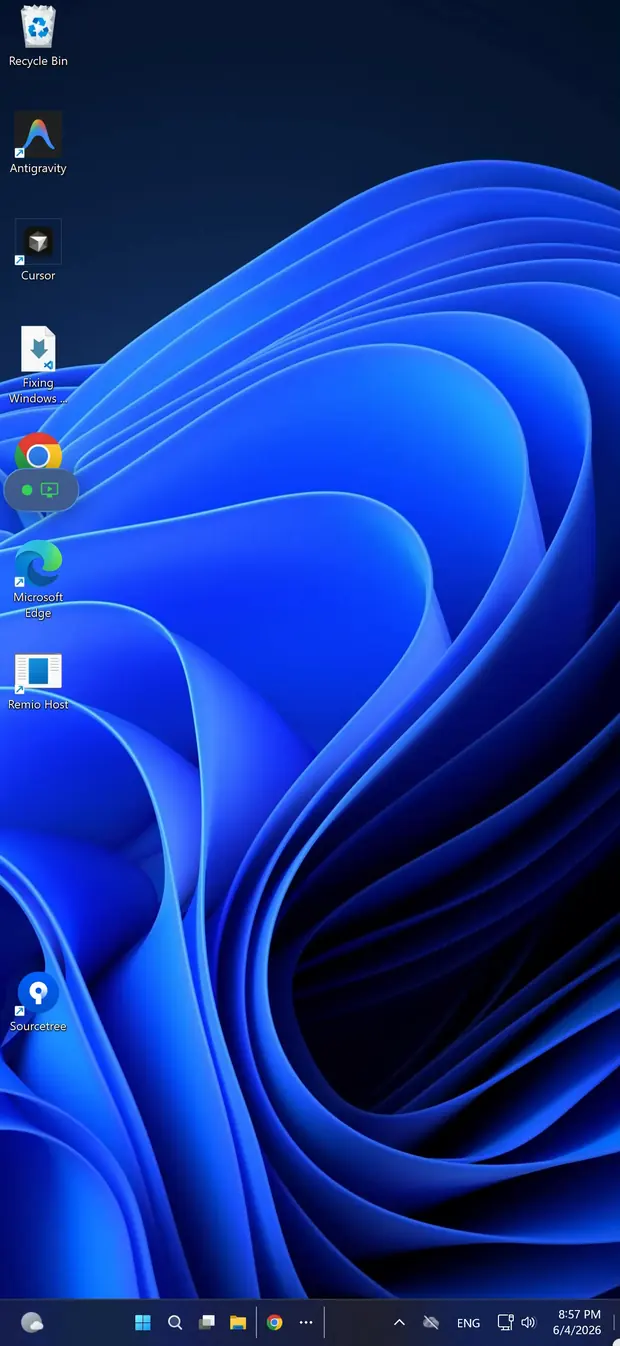
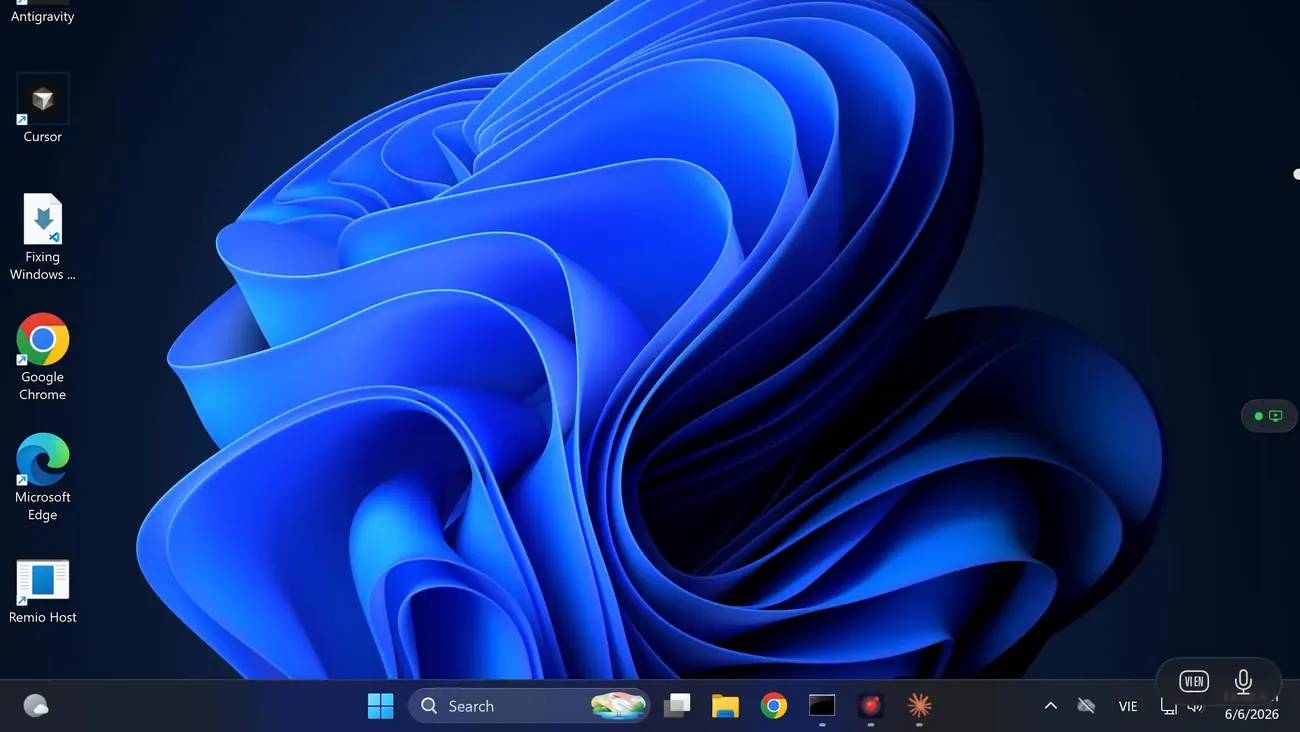
iPhone · Windows 10 & 11 · free

Your Windows PC, in your pocket.

Remio is a native iOS app — not a browser tab, not an Electron wrapper. Install the Windows host, install the iPhone client, pair once with a 4-digit PIN. Multi-touch gestures, an iOS hardware keyboard, even a Bluetooth mouse translate into native Windows input. No Microsoft account, no VPN, no signup wall.

Native iOS, not a web view

Built native for iPhone, not adapted from a browser.

Most “remote desktop” apps you find on iPhone are a web page in a window, or an Electron shell ported sideways. Remio is built from the iPhone outward — the same SwiftUI client codebase that ships on iPad and Mac, with a touch-first layer designed specifically for a 6-inch screen controlling a desktop on the other side.

01
SwiftUI client

A real iOS app, written in Apple’s own language

The Remio iOS client is 100% SwiftUI — the same framework Apple uses for its own first-party apps. That means it follows the iOS design system without effort: pull-to-refresh feels right, Dynamic Type works, Dark Mode switches instantly, Haptic Touch fires where you expect, and the app integrates with iOS Live Activities, Shortcuts, and Focus modes the way every other quality iPhone app does.

There is no WebView in the rendering pipeline. There is no JavaScript bridge marshalling touches across a language boundary. When you tap, the touch event hits a Swift handler in the same process that draws the pixels. That is what makes a remote-desktop app on iPhone feel responsive instead of laggy.

02
Hardware H.265 decode

Metal-accelerated video, every frame on the GPU

Every iPhone shipped since the iPhone XS (A12 Bionic, 2018) has dedicated silicon for decoding H.265 / HEVC video. Remio uses that silicon directly via VideoToolbox. A 4K 60 fps stream of your Windows desktop arrives, gets decoded by the hardware decoder block, and lands on a Metal-backed CAMetalLayer that draws it to the screen — no software fallback, no CPU thrashing, no battery drain.

The result: a typical iPhone can sustain a 60 fps stream from Windows at well under 5% CPU usage. Your phone stays cool. Your battery lasts a full work session. And when the network is fast enough, the stream looks crisp enough to read 11-point text in Visual Studio Code or Excel cells without zooming.

03
Dedicated input pipeline

A separate input channel, tuned for touch-on-desktop

Touch input does not flow through the video channel. Remio runs a separate, low-overhead input channel for every gesture, key press, scroll, and mouse event. That channel is prioritised in the connection so input always lands before the next video frame is drawn — even on a saturated cellular link.

The pipeline is written specifically for the touch-only-controlling-a-desktop case. A long-press knows to behave like a right-click, not a context menu. A two-finger pan knows to scroll the focused Windows app, not the streaming canvas. The iPhone gestures you already know just work, and you do not need to learn a new vocabulary to use your Windows PC.

Touch input on a desktop

Touch that feels like a trackpad.

Windows assumes a mouse. Your iPhone has no mouse. Bridging that gap is where most touch-on-desktop apps fall apart. Remio puts care into every gesture so that controlling a Windows PC from your phone feels natural, not like operating a forklift.

01
One-finger pan

Move the cursor by sliding your finger

A single finger on the screen drives the Windows cursor like an indirect trackpad — your finger does not have to be on top of the click target. Lift, reposition, slide again. The cursor accelerates the way you expect on macOS, with the same Apple Pointer acceleration curve, so muscle memory carries over from your trackpad.

Single tap clicks where the cursor is resting. Double tap double-clicks. Tap-and-drag with one finger drags the window or selects text, exactly as on a Mac trackpad.

02
Two-finger tap = right-click

Every Windows menu, one tap away

Windows lives by its right-click menus — refresh on Desktop, Properties on a file, Inspect Element in Edge, Run as administrator on an EXE. Remio maps a two-finger tap to right-click, mirroring the macOS gesture every iPhone user already learned from iPad trackpads and Magic Mouse on their Mac.

Two-finger scroll forwards a smooth-scroll mouse wheel event to the focused Windows app, so PDF viewers, web pages, and code editors scroll naturally. A three-finger drag picks up and moves the cursor without holding down a button — ideal for resizing windows on a small phone screen.

03
Pinch to zoom the canvas

Zoom into a corner of the desktop without losing context

Windows desktops are big — 1920×1080, 2560×1440, sometimes 3840×2160. Your iPhone is small. A two-finger pinch zooms the streaming canvas, not the Windows display itself, so you can magnify a small UI control to tap it accurately without rearranging your desktop or changing scaling settings on the Windows side.

A two-finger spread back to baseline restores the full desktop view. Zoom level and pan position are remembered between sessions, so if you always work zoomed into the right edge of your monitor to reach the Outlook inbox, that is what you come back to.

04
No physical mouse

The cursor never disappears, even when your finger lifts

A real mouse has a persistent position even when you are not touching it. A finger does not. Remio handles the absent-physical-mouse problem the same way iPadOS does — an always-visible cursor that fades back to its last position when you lift off, so you can plan your next move before placing your finger again.

Hover states work too. Modern Windows controls (the Edge tab close button, the Visual Studio IntelliSense popup, the macOS-style Office hover toolbar) reveal themselves on mouse-over. Remio forwards a synthetic hover from your last touch position so those hover-triggered UI elements appear without needing a click first.

Setup

30 seconds from install to streaming.

No Microsoft account. No Active Directory. No firewall rules. No signup wall. Three things to do, none of them painful, and you are controlling Windows from your iPhone.

01
Step 01 — Windows host

Install Remio Host on the Windows PC

Download the Remio Host installer for Windows 10 or 11 from remio.net/download. Run the installer — standard Windows signed installer, double-click, accept the UAC prompt. The host runs as a regular user-mode app; no kernel driver, no system-wide service, nothing that needs administrator rights to use after install.

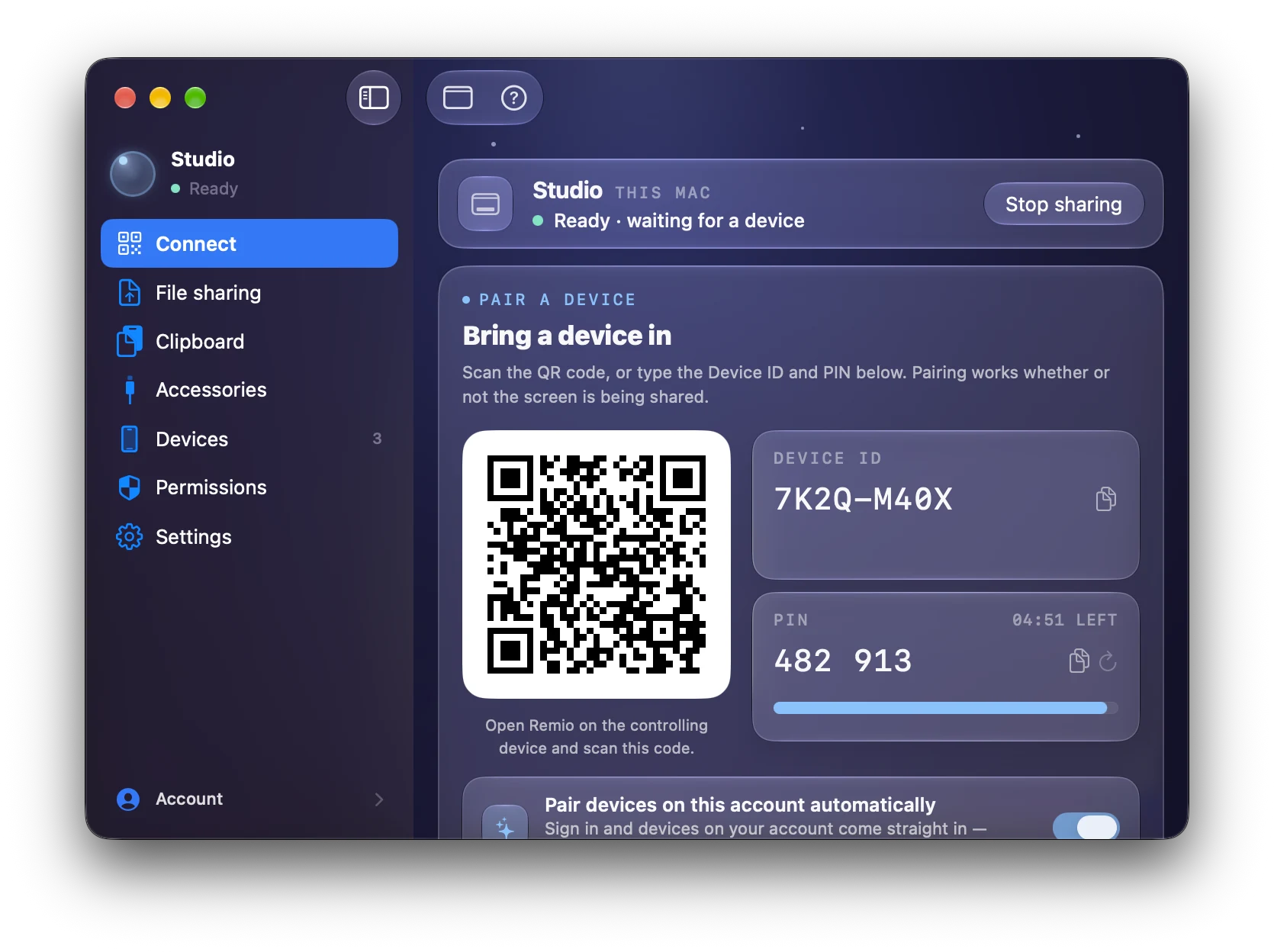
When the host launches, it shows a window with a 4-digit PIN and a QR code. Leave that window on screen and move to your iPhone.

02
Step 02 — iOS client

Install Remio on your iPhone from the App Store

Search “Remio” in the App Store or open remio.net/download on your iPhone to land directly on the App Store page. Download is around 35 MB, installs in seconds. Launch the app — no signup, no email confirmation, no onboarding tour.

Tap the camera icon to scan the QR code on your Windows screen, or type the 4-digit PIN by hand. The two devices exchange one-time encryption keys and remember each other from then on.

03
Step 03 — Connect

Tap your Windows PC and stream

Your Windows PC now shows up in the iPhone app as a named device. Tap it. Remio works out the best network route automatically — a direct connection over the same Wi-Fi when possible (under 5 ms), or an encrypted relay route if a direct path is not available. You are looking at your Windows desktop on your iPhone in a couple of seconds.

Next time you open the app, your Windows PC is one tap away. No PIN to retype, no account to sign back into. The device pairing is persistent and lives only on the two devices — nothing in the cloud.

Performance & bandwidth

Performance that respects your data plan.

A remote-desktop app that drains your battery and burns a gigabyte of cellular data an hour is not actually useful on the road. Remio is engineered specifically for mobile networks — smart bitrate, hardware decode, and a steady 60 fps cadence that does not waste a byte.

01
Adaptive bitrate

From 300 Kbps to 15 Mbps, picked automatically

On a wide-area network (anything that is not your home Wi-Fi), Remio probes the link continuously and adjusts the encoded video bitrate to fit. The floor is 300 Kbps — enough to keep the stream alive on a single bar of cellular — and the ceiling is 15 Mbps for crisp 4K when you are on home fibre or a fast 5G connection.

When the network gets congested or you walk into an elevator, the encoder ramps the bitrate down within a fraction of a second so the stream keeps moving instead of stalling. When bandwidth comes back, it ramps right back up. The transition is smooth because Remio is engineered around it — not bolted on as an afterthought.

02
H.265 hardware decode

Half the bytes for the same picture

Remio uses H.265 / HEVC by default when both ends support it — every iPhone since 2018 does, and every Windows PC with a modern Intel, AMD, or Nvidia GPU does. HEVC compresses the same picture quality at roughly half the bitrate of H.264. On a metered cellular plan, that is the difference between using 200 MB of data per hour and 500 MB.

All decode happens on the iPhone’s dedicated video decoder block, not on the CPU or GPU shaders. Result: lower battery drain, lower thermal throttling, more headroom for the rest of your phone.

03
60 fps fixed cadence

Steady frames, not stuttering 30 fps fallback

A remote-desktop app that drops to 30 fps when the network gets tough feels broken — the cursor jitters, scrolling stutters, video calls inside the stream look wrong. Remio holds 60 fps as the target cadence even on cellular, dropping bitrate before dropping frames. The video stays smooth, just slightly softer for a few seconds while the network catches up.

Glass-to-glass latency on a direct connection over the wide-area network is typically under 40 milliseconds — below the threshold where your brain notices delay between finger and pixel. On the same Wi-Fi, that drops to under 5 milliseconds, which is faster than a wired USB mouse on a desktop.

Real-world scenarios

Work without your laptop.

An iPhone in your pocket is now a window into the full desktop you left at home or in the office. These are the everyday moments where Remio matters — not the theatrical demos, the actual things real people do with it.

01
Render management

Kick off the next render before you leave the office

You are halfway out the door at 6 PM and remember you forgot to queue the overnight render in DaVinci Resolve, or to kick off the next batch in Blender, or to start the model training run before the cluster goes idle. Pull out your iPhone on the elevator down, open Remio, tap the render queue, hit go. The job is running by the time you get to the parking garage.

02
Build monitoring

Check on the long compile from anywhere

A clean rebuild of a large C++ project, a Rust workspace, or a multi-module Gradle build can take 20 minutes. Instead of sitting at your desk watching it tick by, walk out for lunch and check in from your iPhone. Tail the build log, watch the test suite turn green, hit retry if something flaked — without lugging a laptop to a coffee shop.

03
Quick Office work

Run that one Excel macro from the coffee shop

Your boss messages you on Slack: “Can you re-run the Friday close pivot for the regional report?” That spreadsheet has VBA macros that only work in desktop Excel on Windows, and you are halfway through a flat white at the cafe across the street. Open Remio, tap your work PC, run the macro, save the file, attach it to the email reply. Eight minutes, no laptop.

04
Service operations

Restart a stuck service without driving back to the office

A monitoring alert pings your phone — the SQL Server agent on the build PC has fallen over again. Open Remio, tap Services.msc, restart the agent. Forty seconds, including the OK button on the UAC prompt. The alternative was the 30-minute drive back to the office on a Saturday.

05
No-VPN remote work

Reach the work PC without the corporate VPN

Corporate VPN clients on iPhone are clunky, drain the battery, and break every time the network changes. Remio does not need one. The host inside the corporate network reaches out to your iPhone over an encrypted connection, so the whole VPN-plus-RDP dance is replaced by tapping a tile. End-to-end encryption means the connection is safe; lack of an open inbound port means the host PC is not exposed to the internet.

Versus Microsoft Remote Desktop

How it compares to Microsoft Remote Desktop.

Microsoft Remote Desktop (RDP) is Windows’ built-in answer for remote control. It works, but it carries a long list of preconditions — an account, a Windows edition, an open port, a domain configuration. Remio drops every one of those.

01
Windows edition

Works on Windows Home, not just Pro

RDP server is locked to Windows 10 / 11 Pro, Enterprise, and Education. If you have Windows Home — which is what ships on most consumer laptops, gaming PCs, and Microsoft Store purchases — you cannot use Microsoft Remote Desktop without buying a Pro upgrade for around $99. Remio works on Home, Pro, and Enterprise identically, no upgrade required.

02
Account requirements

No Microsoft account, no Remio account either

Modern RDP through Microsoft Remote Desktop Gateway typically expects a Microsoft account or an Azure AD identity. Remio asks for neither. Pairing uses a one-time 4-digit PIN that exists only on your two devices — no cloud profile, no email address on file, no recovery question, no targeted advertising.

03
Encryption

End-to-end encrypted by default

RDP encryption is configurable and depends on Network Level Authentication settings, certificates, and the policies of the gateway in between. Remio is end-to-end encrypted by default with no setting to turn it off — even Remio cannot decrypt your stream, because the encryption keys live only on your two paired devices and are never sent to a server.

For a full side-by-side — Remio vs Microsoft Remote Desktop, Chrome Remote Desktop, TeamViewer, Parsec, and AnyDesk — see the compare hub.

FAQ

Things people ask first.

Five questions the iPhone-to-Windows use case tends to raise — honest answers below.

No. Remio runs on Windows 10/11 Home, Pro, or Enterprise without changes. The Windows RDP server is not used — Remio has its own host app, so the “Home edition does not include Remote Desktop server” limitation does not apply.
No. Pairing uses a local 4-digit PIN that exists only on your two devices. No Microsoft account, no Remio account, no email, no profile. If you are signed into your Windows PC with a local account or a domain account, Remio works either way.
Hardware keyboards (a Magic Keyboard, the iPad smart-folio keyboard attached via USB-C, or any Bluetooth keyboard) forward natively as a real PC keyboard. The on-screen iOS keyboard maps every key to a Windows scancode — arrow keys, function row (F1–F12), modifiers (Ctrl, Alt, Shift, Win), and shortcuts like Ctrl+C, Alt+Tab, Win+L. Long-press a key on the iOS keyboard for accented or special characters.
Yes. Bluetooth mice and trackpads connected to your iPhone forward as native Windows mouse input — including secondary (right) click, scroll wheel, and gesture data on supported trackpads such as the Magic Trackpad. Pair the mouse with your iPhone in Settings > Bluetooth, and Windows sees a regular mouse from then on.
Both. On cellular, Remio falls back to an adaptive bitrate envelope (300 Kbps minimum, 15 Mbps maximum) and switches to an encrypted relay route if a direct path is not available. Most 4G and 5G networks sustain a clean 60 fps stream; older 3G or congested public Wi-Fi will drop bitrate but keep moving instead of stalling.

Your Windows desktop, one tap away.

Install Remio Host on the Windows PC you want to reach. Install Remio on your iPhone from the App Store. Pair with a 4-digit PIN — that is the whole setup, and it costs nothing.

Windows 10 & 11 · iOS 16 and newer · free, no account, no card.