How to use Remio — every feature, explained.
One page that maps everything Remio can do — and links the guide that shows you how. From your first QR scan to the settings most people never find.
Pair once, stream forever
Remio is two apps: a host on the computer you want to reach, and a client on the device in your hand. Pair them once with a QR scan or a Device ID and PIN — no account, no router setup — and they find each other from then on.
Scan once. Connected for good.
The host shows a QR code, a Device ID and a PIN. Point your phone's camera at the QR — or type the Device ID and PIN — and the two machines are paired. From then on your computer simply appears in the device list, ready to connect from anywhere. On an iPhone or iPad, a Mac running Remio Host on the same Wi‑Fi can also be paired in one tap: tap it on the Pair screen, check that both screens show the same code, and click Allow on the Mac.
The full first-session walkthrough →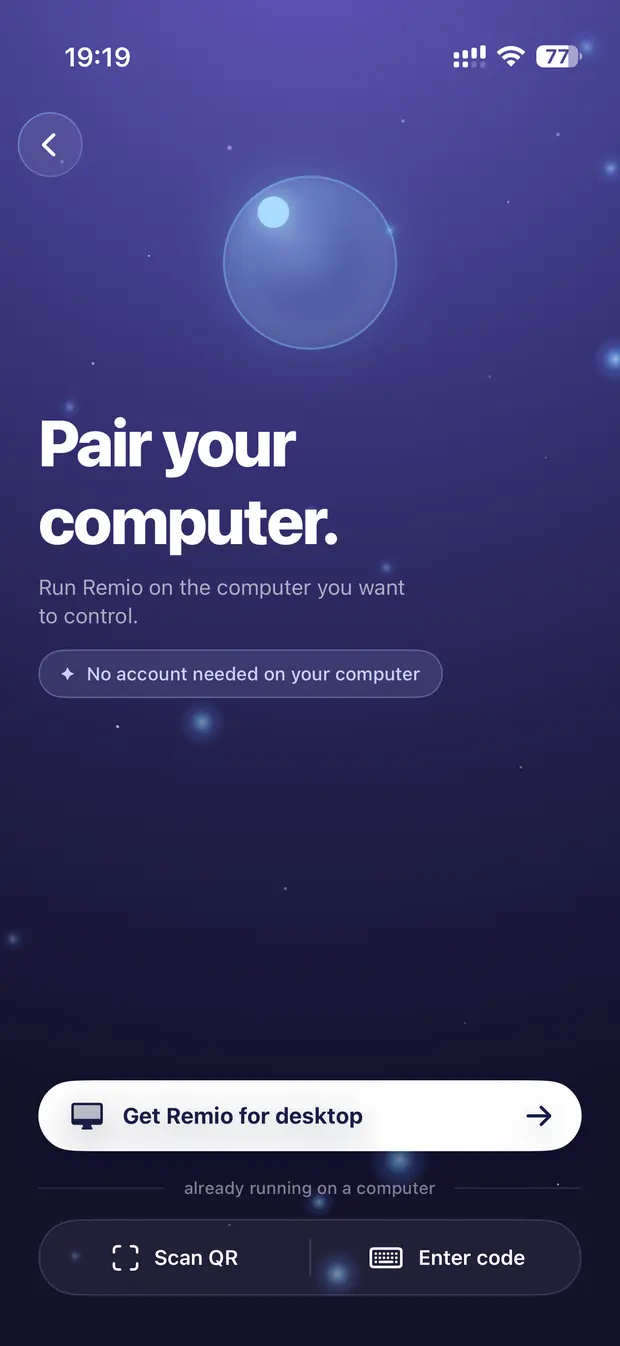

Install the host, grant its two permissions, install a client, scan the QR, stream.
macOS · Windows · Linux hosts Check your devices are supportedOS versions for every host and client, and the network that gets you the lowest latency.
All platforms Download Remio for each deviceEvery host and client, one download page. Free, with no commercial-use detection.
All platforms Use Remio on Apple TVControl a Mac, Windows PC or Linux machine from the couch with the Siri Remote.
Apple TV client Recipe: Mac to MacPair two Macs on the same network or across the internet.
macOS host · macOS client Recipe: Mac to iPadApple Pencil, Magic Keyboard, and trackpad — the full iPad experience.
macOS host · iPadOS client Recipe: Windows to MacReach a Windows desktop from a Mac with full input parity.
Windows host · macOS clientFingers, pencils, keyboards, controllers
Every mouse action has a touch gesture, and the peripherals you already own — a Bluetooth keyboard, a trackpad, an Apple Pencil as a precise pointer, a game controller — all work on the remote computer. Watch the gestures:
Touchpad vs Direct Touch mode, every gesture, and how to tune pointer and scroll speed.
iPhone · iPad · Android Typing & keyboardsThe on-screen keyboard that pushes content up instead of covering it, the shortcut bar, and hardware keyboards.
All clients Keyboard layouts & special keysNon-US layouts, sticky modifiers, and rebinding problematic keys.
All clients Apple PencilPoint, tap, and scroll with the Pencil on iPad — plus palm rejection setup.
iPad Game controllersXbox, DualSense, and MFi controllers — pairing, slots, and button mapping.
iOS · macOS · Android clientsA desktop shaped exactly like your device
Dynamic resolution — resize the window, the desktop follows.
Remio does not squeeze a copy of the host's monitor onto your screen. It drives a dedicated virtual display sized exactly to your window — rotate your phone, drag a corner on your Mac, go fullscreen, and the remote desktop reshapes itself live, pixel for pixel. It feels like your machine because, for that session, it is.
How dynamic resolution works →Pick which monitor streams, open each screen in its own window on Windows and Mac, or use the dedicated virtual display sized to your device.
macOS · Windows · Linux hosts Second display NewUse an iPhone, iPad, Mac, Android device, Windows PC or Apple TV as an extra screen for your computer — up to three at once (the first one is free), at home or away, straight between your devices.
macOS · Windows · Linux hosts Streaming quality presetsAuto to Ultra — what each preset trades, and when to change it.
All clients True 4:4:4 color NewPixel-exact text and color from a Mac or an NVIDIA PC, streaming to a Mac or a Windows PC.
Mac or NVIDIA PC → Mac or Windows Zoom & pan your viewPinch to magnify the stream — read small text without touching the host. Past 1.5×, a small map shows where you are, and with the latest Remio Host the computer sends only the part you're looking at.
iPhone · iPad · Android Picture in PictureKeep the stream in a floating window while you use other apps.
iOS · macOS clients Advanced video settingsCodec, frame-rate caps, bitrate limits — the whole screen, explained.
All clientsHear your computer, wherever you are
System audio streams alongside the video, in sync, straight to whatever output your device is already using — AirPods, a Bluetooth speaker, the phone's own speakers.
Turn on host audio capture and route sound to your client in one toggle.
All hosts → all clients Audio settings, explainedChannels, quality, sample rate, frame duration, and silence detection.
All clients Fix audio problemsDropouts, crackling, and silent streams — diagnosed step by step.
All platformsTwo machines that act like one
Copy here, paste there.
The clipboard is shared both ways: copy text on the remote computer and paste it on your device — or the reverse — with no extra taps. It rides the same end-to-end encrypted connection as the stream, so no server can read it. Files go the same way: pick a document on your phone and it lands in the host's Downloads → Remio folder, revealed and ready.
How clipboard sync works →Copy text on either side, paste on the other. On by default, and easy to switch off.
All hosts ↔ all clients Send files to your computerShare a file from your device and it lands in the host's Downloads → Remio folder — over the encrypted session.
iOS · Android · Mac · Windows clients → hosts The dock & app launcherLaunch the host's apps from a dock in the streaming toolbar — no hunting for tiny icons.
All clientsThe computer you left behind, handled
Close the lid. Keep working.
Shut a MacBook's lid and Remio keeps the stream alive — no dummy HDMI dongle, no settings dance. Combined with remote unlock, a locked computer is never out of reach: connect, see the lock screen, and type your password from your phone.
Streaming with the lid closed →Connect to a locked computer and type its password from your device.
All hosts Privacy & session-end controlsBlank the physical screen while you work, and lock the computer automatically when you disconnect.
Host settings Lid-closed streamingKeep a MacBook awake and streaming with the lid shut.
macOS host MacBook lid closed, no dummy plugReach a MacBook with the lid shut — no HDMI dongle, no external monitor.
macOS host Wake a sleeping computerWake-on-LAN setup so the host is reachable even after it drifts off.
Network setup Control admin windows & UACInstallers, Task Manager, and elevated prompts stay controllable on Windows hosts.
Windows host Start the host automaticallyLaunch at login so the computer is reachable after every restart.
All hostsDirect by default, relay when it must
Remio always tries the shortest path first — a direct, device-to-device connection. When a network blocks it, an encrypted relay carries the session instead, and only ever sees ciphertext.
Direct vs relay, what the connection info panel tells you, and why LAN feels instant.
All platforms Stay direct from anywhereForward one UDP port and enter it in Remio — sessions from outside stay direct.
Advanced · all clients Firewalls, NAT & corporate networksDouble NAT, blocked UDP, and the workarounds that actually help.
Network setupOptional sign-in, synced everywhere
Remio works with no account at all. Sign in — Google, Apple, or email — only if you want your list of computers to follow you across devices.
Your computers, on every device.
The home screen is your fleet: each paired computer with a live thumbnail and its status — ready to stream the moment you tap. Sign in once on a new phone and this list is already filled in.
Accounts & sync, explained →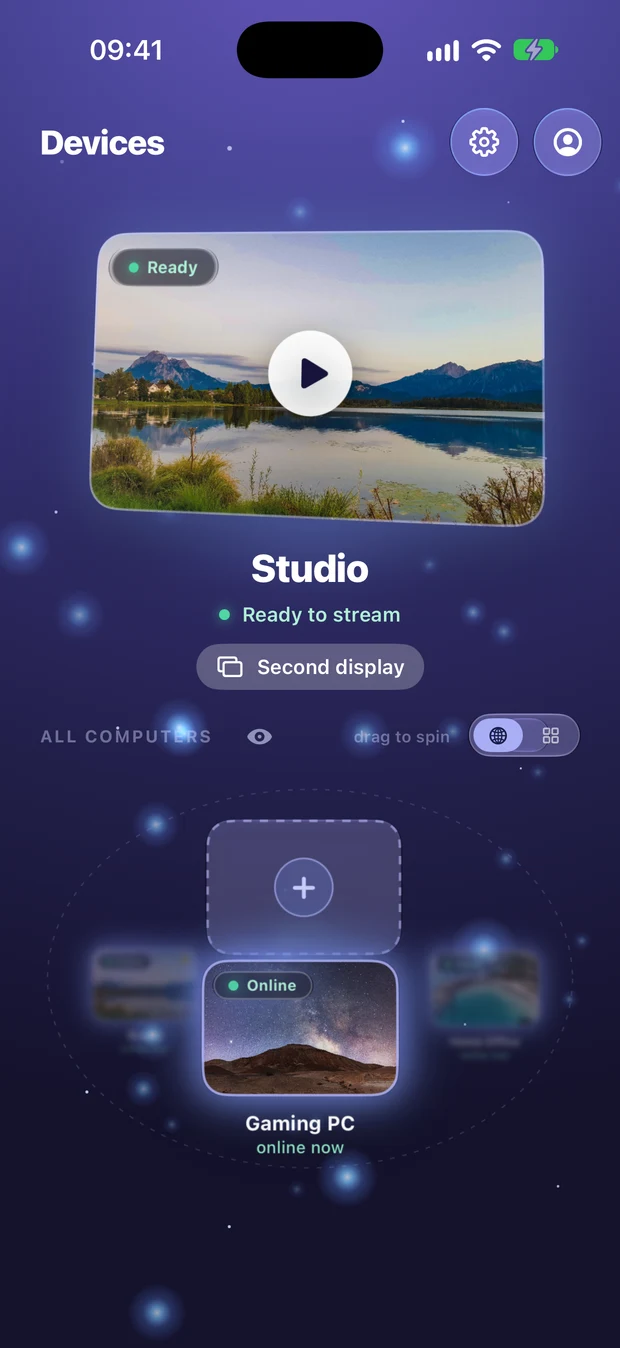
Google, Apple, or email — and what syncing actually stores (spoiler: never your screen).
All platforms Manage paired devicesSee every device paired to a host, remove one, or rotate the PIN.
Host settings Delete your accountRemove your account and its synced data completely, any time.
AccountOn the workbench
Documented here before they ship, so you know what is coming. The live status of each lives on the roadmap.
Use USB devices plugged into your Android phone or tablet on the computer you control, and bring USB devices to Windows and Linux hosts — coming to Remio Pro.
Let someone in for one session with a link, and record sessions on your own device — coming to Remio Pro.
Fleet deployment from a golden image, tags and folders, team admins and an audit log for teams.
Linux is host-only today; a native client is on the roadmap.
True 4:4:4 color beyond Macs and NVIDIA PCs — more GPUs and more devices on the way.
Frequently asked questions
How do I start using Remio?
How do I right-click, scroll, and drag with touch?
Does Remio sync my clipboard and transfer files?
Do I need an account to use Remio?

Learn it once. Use it everywhere.
Remio is free on every platform, and everything that was free stays free. Remio Pro adds extras like more virtual displays and files back from your computer — $1.99 a month with a 7-day free trial. Install the host, pair a device, and try each one yourself.
Free to useNo accountPaired in 30 seconds