The Mac goes to sleep
Closing the lid puts a MacBook to sleep unless something overrides it, and a sleeping Mac cannot be streamed.
Yes — you can remote desktop into a MacBook with the lid closed, with no dummy HDMI plug and no external monitor, using Remio Remote Desktop. Turn on “Keep awake with lid closed” in Remio Host on a MacBook with Apple silicon (macOS 15 or later), close the lid, then connect from your iPhone, iPad, Mac, Android or Windows device. Remio keeps the Mac awake and streams a virtual display sized to your device — free, no account.
Not by default. A MacBook sleeps when you close the lid, and a sleeping Mac shows as offline until something wakes it. Three things get in the way.
Closing the lid puts a MacBook to sleep unless something overrides it, and a sleeping Mac cannot be streamed.
Remote desktop apps stream a display. With the lid shut and nothing plugged in there is none — Parsec’s help says so about a closed laptop.
Apple’s closed-display mode (often called clamshell mode) expects an external display, power, and an external keyboard and mouse. Apple Support
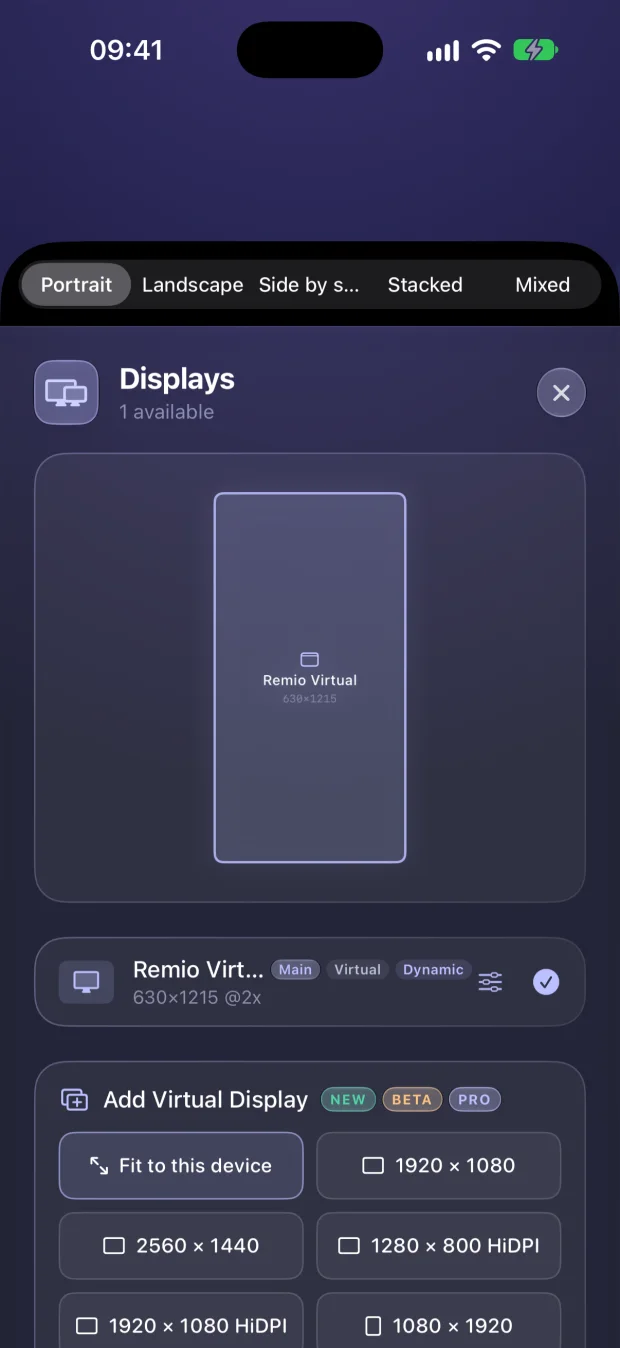
Remio does two jobs. Keep awake with lid closed stops the MacBook sleeping when the lid shuts: it sets the macOS “SleepDisabled” flag — the one pmset -a disablesleep 1 sets — through a small helper you approve once. Then every session creates a virtual display sized to the device you connect from, so there is always a screen to stream.
Your own screens, if any, go dark during the session and come back exactly as they were.

Five steps, done once. The lid-closed streaming guide has the full walkthrough and troubleshooting.
Get it from the download page. It needs a Mac with Apple silicon (M1 or newer) and macOS 15 or later. Use version 3.0.8 or later, which fixed a lid-closed MacBook on power accepting a connection and then showing nothing.
Open Remio Host’s Settings (or its menu-bar item, “Keep Awake (Lid Closed)”) and switch it on. It is off by default and appears only on MacBooks — desktop Macs have no lid.
Under System Settings → General → Login Items & Extensions, turn on Remio Host under “Allow in the Background”; macOS may ask for your Mac password at that step. Remio notices the approval itself, so no restart, and the switch never asks again. The helper only takes requests from Remio Host.
Pick how long to stay awake (15 minutes to 4 hours, or no limit), whether to run only while charging, and the battery level where Remio lets the Mac sleep — 20% by default.
Pair with the QR code, or the Device ID and PIN, from Remio Host (on the Mac host the PIN changes every five minutes). Close the lid and connect. If the Mac locked itself you see its real lock screen — type your password to unlock it remotely.
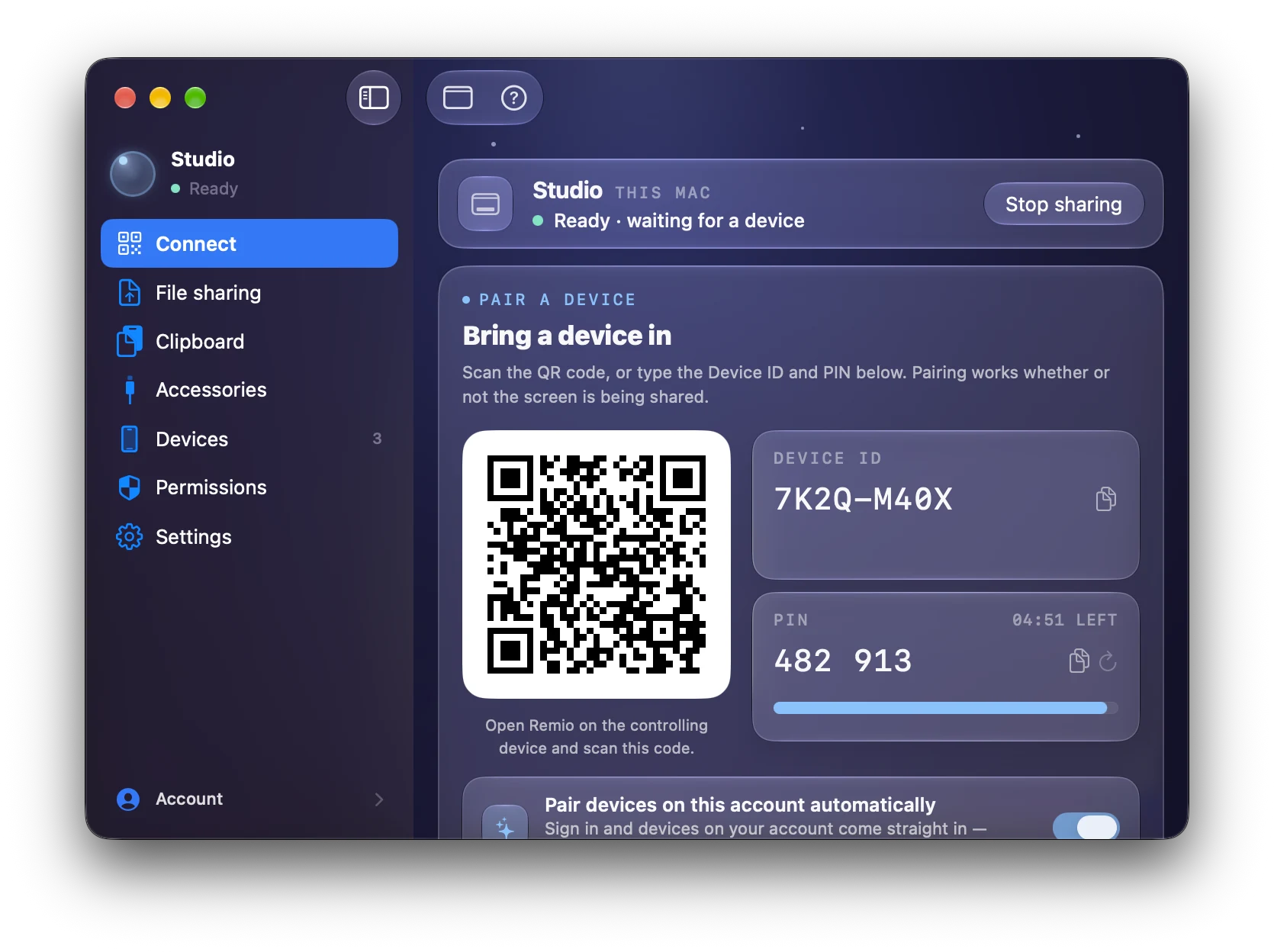
Remio Host on the Mac: scan the QR code or type the Device ID and PIN to pair.
Keep awake is a standing setting, not a per-session one: while Remio Host is running it holds between sessions too. It stays on until you switch it off or one of the first three things below happens; the fourth ends a session, not the setting.
A charger is not required by default. On battery, Remio keeps the Mac awake until the charge reaches your low-battery cutoff (20% by default), then lets it sleep, which ends the session. Plug in for long sessions.
If macOS reports serious or critical thermal pressure, Remio pauses and resumes when the Mac cools. Keep the MacBook on a desk or shelf with airflow.
Switch “Keep awake with lid closed” off yourself, or let “Keep awake for” stop after 15 or 30 minutes, or 1, 2 or 4 hours; “Only while charging” pauses on battery. Quit Remio Host, or let it stop responding for 90 seconds, and normal sleep returns.
Opening the lid during a session ends that session — someone is at the Mac, so its screen comes back. Keep awake stays on, and Remio Host accepts connections again after about 15 seconds.
Vendor details come from each company’s public help pages; the other rows come from the guides linked. Last reviewed 5 October 2026.
| Option | What it takes with the lid closed |
|---|---|
| Remio Remote Desktop | One switch (“Keep awake with lid closed”) and a one-time approval; a virtual display is created for each session. No plug, no monitor. Free, no account; Apple silicon Macs only.Source: Remio lid-closed guide |
| Apple’s closed-display mode | Needs an external display, power, and an external keyboard and mouse.Source: Apple Support |
| Dummy HDMI plug | A cheap display emulator — USB-C or DisplayPort on a MacBook Air, which has no HDMI port — plus a way to stop sleep. One guide warns macOS may still sleep on battery, plug or not.Source: Servey · KeepAwake guide |
pmset disablesleep 1 | A free Terminal command that needs admin rights. It stops the Mac sleeping for any reason until you set it back to 0 or restart, so it is system-wide and easy to leave on by mistake. It adds no display.Source: Servey |
| Amphetamine | A free sleep-prevention app. On Apple silicon its closed-display mode needs a script installed with a one-time Touch ID or admin-password step.Source: Macworld · Amphetamine Power Protect |
| Parsec | Its help says a closed laptop turns its screen off, leaving Parsec no display. On Mac hosts, Virtual Displays (Beta) need a Warp or Teams subscription; the free fallback display is Windows-only. A Stay Awake host setting exists.Source: Parsec help · virtual displays · macOS app |
| Jump Desktop | A single virtual display is included on every plan and suits headless hosts. Its help page does not mention closed lids. Jump’s Teams Enterprise plan has a Sleep Override setting that keeps Mac hosts awake.Source: Jump Desktop help · Jump Desktop 10 docs |
| Splashtop | Streamer 3.8.0.0 for Mac (October 2025) added a virtual display option; its headless-Mac help still suggests a monitor or a dummy HDMI device.Source: release note · headless Mac help |
| TeamViewer, AnyDesk, RustDesk | TeamViewer’s virtual monitor removes the need for dongles, but only on Windows devices. AnyDesk suggests a headless display adapter and RustDesk a dummy plug for monitorless machines; neither page mentions laptop lids.Source: TeamViewer · AnyDesk · RustDesk |
How the others handle it: Parsec and Jump Desktop both document virtual displays for headless hosts, and Jump includes one on every plan. Of the vendors above, Parsec’s help addresses a closed laptop (Parsec then has no display) and Jump documents a Sleep Override for Mac hosts on Teams Enterprise; the rest don’t mention lids. What differs is what you add: a plug, a command or a paid plan. Remio puts the sleep override, the per-session virtual display and remote unlock in one free app. Side by side: Remio vs Jump Desktop · Remio vs Parsec.
sudo pmset -a disablesleep 1, a sleep-prevention app, or Remio’s “Keep awake with lid closed” switch, which sets the same macOS flag through a helper you approve once and releases it when you turn it off.
No dummy HDMI dongle — ever. Install Remio Host on your MacBook, switch on Keep awake with lid closed, and connect from the device in your hand. Free, no account.
Free to useNo accountMacBooks with Apple silicon