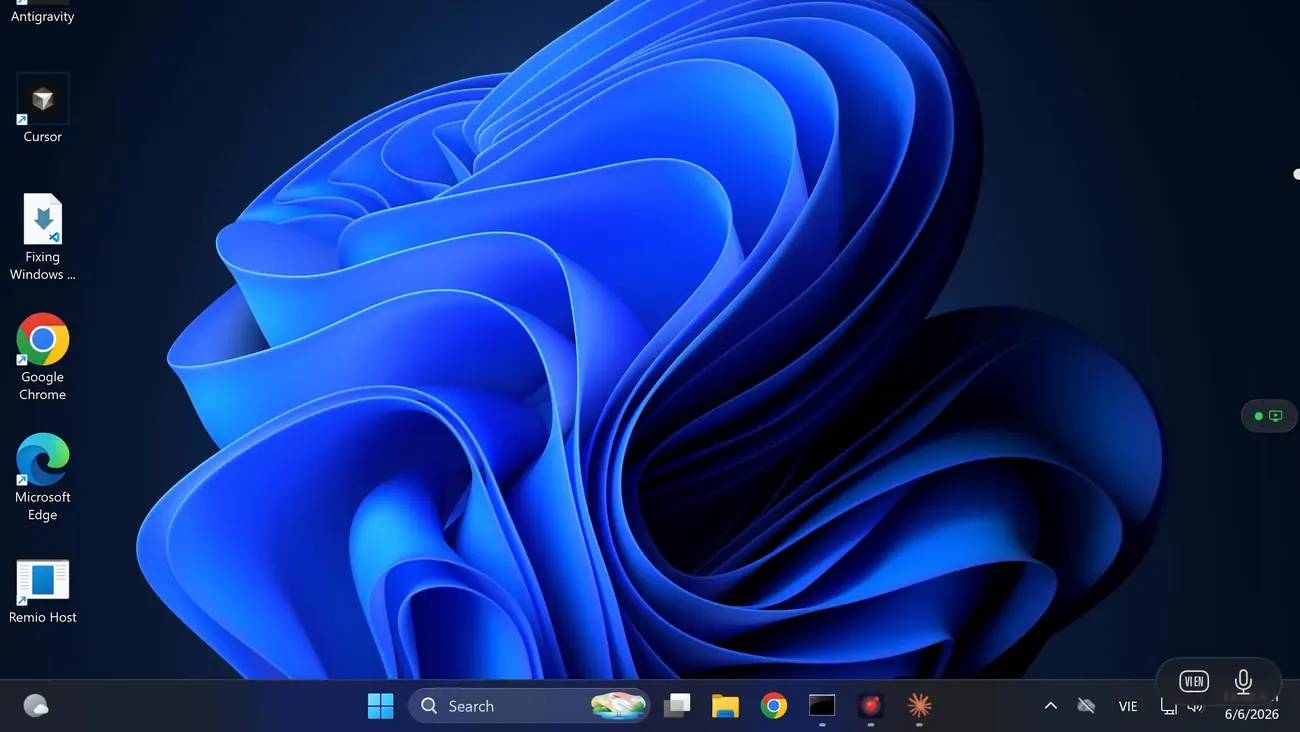
Windows 10 + 11 Home · hosting without the upgrade

Remote desktop on Windows 11 Home. No Pro upgrade needed.

Open Settings on a Home PC and Remote Desktop greets you with “Your Home edition of Windows doesn’t support Remote Desktop.” The host half of RDP is Pro-only — but it’s not the only host. Remio puts a free, native, end-to-end-encrypted host on Windows 10 and 11 Home: no Microsoft account, a 4-digit PIN to pair, sub-5 ms latency on your LAN.

The edition split, explained

Why Windows Home can’t host Remote Desktop

Nothing on your PC is broken. Microsoft splits the Remote Desktop Protocol into two halves — a client that connects out and a host service that accepts connections in — and ships Home editions with only the first half. The host service is reserved for Pro, Enterprise, and Education editions, and that decision is enforced by the edition itself, not by a setting you can flip.

The client ships — the host doesn’t
Every edition of Windows, Home included, ships the Remote Desktop client — the app you use to reach other machines. What Home leaves out is the RDP host (server) component: the service that listens for inbound sessions and hands over the desktop. The protocol is there in one direction only.
The Settings toggle simply isn’t there
On Pro, Settings → System → Remote Desktop has an Enable toggle. On Home, the same page shows “Your Home edition of Windows doesn’t support Remote Desktop” where the toggle would be. There is no hidden switch, no Group Policy to edit — the host service is absent from the edition, so there is nothing for a toggle to turn on.
Outbound works, inbound doesn’t
A Windows Home PC can connect out to a Pro, Enterprise, or Education machine over RDP without any trouble — that is the client half doing its job. The reverse direction fails: point a remote PC at a Home machine and the connection is refused, because nothing on the Home side is listening for RDP.
Same rule on Windows 10 and Windows 11
This is not a Windows 11 change. Windows 10 Home has exactly the same restriction, and upgrading from Windows 10 Home to Windows 11 keeps you on Home. The edition boundary — client everywhere, host on Pro and up — has been Microsoft’s policy for many years and applies to both generations alike.
Three exits, weighed fairly

The usual workarounds, honestly compared

Three paths get you remote access to a Windows Home PC. One costs money, one fights the operating system, and one sidesteps the restriction entirely. Each is legitimate to consider — here is what each actually involves.

01
Option A · pay Microsoft

Upgrade to Windows 11 Pro — $99 list price, per machine

The supported path. Microsoft sells the Home-to-Pro upgrade through the Microsoft Store at a $99 list price, applied per machine, and the switch happens in place — no reinstall. Pro unlocks the RDP host along with BitLocker, Hyper-V, and Group Policy, so if you wanted those anyway, the upgrade earns its keep.

If remote access is the only thing you are buying, the math is less kind: $99 for every Home machine you want to reach, to enable one service the hardware could already run. And the upgrade only enables hosting — reaching that PC across the internet still typically means port forwarding, a VPN, or a gateway on top.

02
Option B · patch Windows

RDP Wrapper — clever, fragile, and in a gray zone

RDP Wrapper is a long-running open-source project that wraps the Terminal Services service and re-enables RDP host listening on Home editions. Credit where due: it costs nothing, it is genuinely clever, and when its definitions are current it works. Plenty of technically minded people have used it for years.

The honest caveats are real, though. Windows updates that touch the Terminal Services binary routinely break it until contributors publish new definition files, which can leave you locked out of a remote machine at the worst possible moment. It sits in a licensing gray zone — it switches on a feature the Windows license disables by edition. And antivirus flags are common: Defender and other scanners regularly quarantine its files as potentially unwanted. For a hobby box, maybe. For a machine you depend on, the maintenance burden and ambiguity are a recurring cost.

03
Option C · bring your own host

Remote desktop apps that bring their own host

The third path ignores Microsoft’s RDP server entirely. Third-party remote desktop apps install their own host software — their own screen capture, their own encoder, their own protocol — so the edition restriction never comes into play. Windows Home runs them exactly as well as Pro does, with no patching and nothing for Windows Update to break.

Quality across this category varies: some tools wrap a browser engine, some require accounts, and capabilities differ widely. This is the category Remio is in — the next section lays out what it does, specifically and verifiably, on a Windows Home PC.

Option C, done properly

Host from Windows Home, free, with Remio

Remio ships its own native host, so the Home edition restriction is irrelevant by design. No patching, no edition check, no account — and nothing held back. Here is the factual record.

01
Runs on Home, by design

A native C++/WinRT host — not a patch, not Electron

The Remio host is a native Windows app built with C++/WinRT, and it runs on Windows 10 (build 19041+) and Windows 11 — Home editions included. It never touches the Terminal Services binary, edits the registry to fake an edition, or depends on anything Microsoft reserved for Pro. Windows updates that break RDP Wrapper sail past it, because there is nothing patched to break.

02
Completely free

Every feature, every platform — $0

Remio is completely free, and every feature ships in the one build everyone gets: unattended access, multi-monitor, audio, Wake-on-LAN, 4K streaming, end-to-end encryption. There is no feature gate and no usage detector deciding you owe money. The $99 you would have spent on the Pro upgrade stays in your pocket — on every machine.

03
No Microsoft account · no any account

Pair with a 4-digit one-time PIN — nothing to sign up for

Remio requires no Microsoft account and no Remio account — no email, no password, no profile. The host shows a 4-digit one-time PIN; type it into the client once and the devices exchange keys and remember each other. There is no central user database to breach, because there are no users to store.

04
End-to-end encrypted

AES-256-GCM with ECDHE-Curve25519 key exchange

Sessions are encrypted end-to-end with AES-256-GCM, and keys are negotiated directly between your devices over ECDHE on Curve25519. Keys never leave the endpoints, so when a relay is needed to cross a strict NAT, it forwards ciphertext it cannot read. The full model is documented on the security page.

05
Measured, not marketed

Sub-5 ms LAN · 22 ms WAN same-region — verified May 2026

On the same network, input-to-pixel latency measures under 5 ms; across the internet within the same region, typical sessions measure 22 ms. Both figures were last verified in May 2026. Streams run up to 4K at 120 fps with 4:4:4 chroma sampling — text stays sharp because color detail is never thrown away — with multi-monitor support and audio in sync.

06
Clients on every screen you own

iPhone, iPad, Android, Mac, PC, Vision Pro

Native clients run on iOS and iPadOS 18+, macOS 15+, Android 10+, Windows 10/11, and visionOS 2.0+. Your Windows Home PC becomes reachable from the phone in your pocket, the tablet on the couch, the Mac on your desk, or the headset on your face — same PIN pairing, same encryption, same zero dollars.

From error message to streaming

Set it up in five minutes

No edition check, no registry edits, no router configuration. Two installs, one PIN, and the Home PC that “doesn’t support Remote Desktop” is hosting one.

Step 01 · Install the Remio host on the Windows Home PC
On the Windows 10 (build 19041+) or Windows 11 Home PC you want to reach, download the Remio host from the download page and run the installer. Accept the one-time Windows Defender Firewall prompt when it appears. The host sits in the system tray, waiting — it never asks which edition you run.
Step 02 · Install the client on the device you’ll connect from
On the device in your hand — iPhone or iPad (iOS/iPadOS 18+), Android 10+ phone or tablet, Mac (macOS 15+), another Windows 10/11 PC, or Apple Vision Pro (visionOS 2.0+) — install the free Remio client from the same download page or the platform’s app store.
Step 03 · Pair with the 4-digit PIN
The host displays a 4-digit one-time PIN. Type it into the client; the devices exchange encryption keys over ECDHE-Curve25519 and remember each other. No email, no password, no profile — reconnections from then on are instant.
Step 04 · Connect
Tap the PC in the client’s device list and the full desktop appears — audio in sync, multi-monitor supported, end-to-end encrypted, up to 4K 120 fps when the hardware allows. The detailed walkthrough with screenshots lives in the Windows setup guide.
Optional · Unattended access and Wake-on-LAN
Flip on unattended access in the host settings to connect without anyone clicking Accept at the PC, and enable Wake-on-LAN to wake the machine from sleep before you connect. Both are included — free, like everything else.
Side by side

Windows Home RDP vs Pro RDP vs Remio

The eight rows that decide it. Windows 10 Home behaves identically to Windows 11 Home in the middle column — and where built-in RDP on Pro is genuinely solid, the table says so.

Capability Remio Windows 11 Home (built-in RDP) Windows 11 Pro (built-in RDP)
Can host inbound connections? No — client only; can connect out to Pro machines Yes — RDP host included
Price to enable hosting $99 list price for the Pro upgrade, per machine Included with the Pro license
Account required N/A — cannot host Windows account with a password on the host
Encryption model N/A — cannot host TLS between client and host
LAN latency N/A — cannot host Low for desktop apps; frame rate typically capped near 30 fps by default
Multi-monitor N/A — cannot host Yes
Audio N/A — cannot host Yes — redirected playback
Works over the internet without port forwarding? N/A — cannot host Typically needs port forwarding (TCP 3389), a VPN, or RD Gateway

Want the full matrix — codecs, input handling, gateway scenarios, and where Microsoft’s RDP still wins? See the full Remio vs Microsoft Remote Desktop comparison.

The part nobody should skip

Safer than opening port 3389

Even on Pro, reaching built-in RDP across the internet usually means forwarding TCP port 3389 to your PC — and exposed RDP is consistently cited in incident-response reporting as one of the most common initial access vectors for ransomware and brute-force attacks. Remio’s architecture removes that exposure instead of asking you to manage it.

Exposed RDP is a standing invitation
Internet-wide scanners find newly opened 3389 ports within minutes, and what follows is mechanical: credential stuffing, brute-force password guessing, and exploitation of unpatched RDP vulnerabilities. Security agencies and incident-response teams have warned about internet-exposed RDP for years — it remains a favorite door for ransomware operators precisely because so many people leave it open.
Remio listens on nothing
Remio makes outbound-only connections from both ends. The host and client each reach out, and STUN/ICE hole punching stitches those outbound paths into a direct peer-to-peer session — no forwarded port, no listener on the open internet, nothing for a scanner to find. Your router stays exactly as it was. The mechanics are unpacked in NAT traversal, explained.
The fallback can’t read your session
When a strict NAT makes a direct path impossible, Remio falls back to a TURN relay — but the session stays end-to-end encrypted with AES-256-GCM, and keys never leave your devices, so the relay forwards ciphertext it cannot decrypt. The threat model, key exchange, and relay design are documented on the security page.
Common questions

Common questions about Windows Home remote desktop

The five questions people ask after hitting the Home edition wall. Straight answers below.

Not through the built-in Remote Desktop feature — Home editions ship only the RDP client, so the host toggle is missing and inbound RDP connections are refused. Windows 11 Home can absolutely accept connections through apps that bring their own host component. Remio installs a free native host on Windows 10 and 11 Home — every feature included, no account required.
RDP Wrapper is an unofficial open-source patch that re-enables the RDP host service on Home editions. It sits in a licensing gray zone — it switches on a feature the license disables by edition — and it routinely breaks after Windows updates until new definitions ship. Antivirus tools flag it often. It is a clever project, but most people are better served by a supported app that brings its own host instead of patching Windows.
No. Remio requires no account of any kind — no Microsoft account, no email, no password, no profile. Devices pair with a 4-digit one-time PIN shown on the host, and session keys are negotiated directly between your devices.
Yes. Remio has native clients for iOS and iPadOS 18+, Android 10+, macOS 15+, Windows 10/11, and visionOS 2.0+. Your Windows Home PC streams to any of them with audio, multi-monitor support, and end-to-end encryption.
Yes. Remio connects peer-to-peer across the internet using NAT traversal, with an encrypted TURN relay as fallback when a direct path is impossible. You never open ports or touch your router, and sessions stay end-to-end encrypted — a relay only ever forwards ciphertext.
Free, all features · no account · no card

Skip the upgrade. Keep the $99.

Install the Remio host on your Windows Home PC, install the client on the device in your hand, type a 4-digit PIN once. No Pro license, no Microsoft account, no patched system files, no open ports — just your desktop, end-to-end encrypted, on any screen you own.

Host on Windows 10 (build 19041+) and Windows 11, Home editions included. Clients on iOS, iPadOS, macOS, Android, Windows, and visionOS. No account, no card.