macOS 15+ client · Windows 10 & 11 host, Home included · free

Your Windows PC, on your Mac’s display.

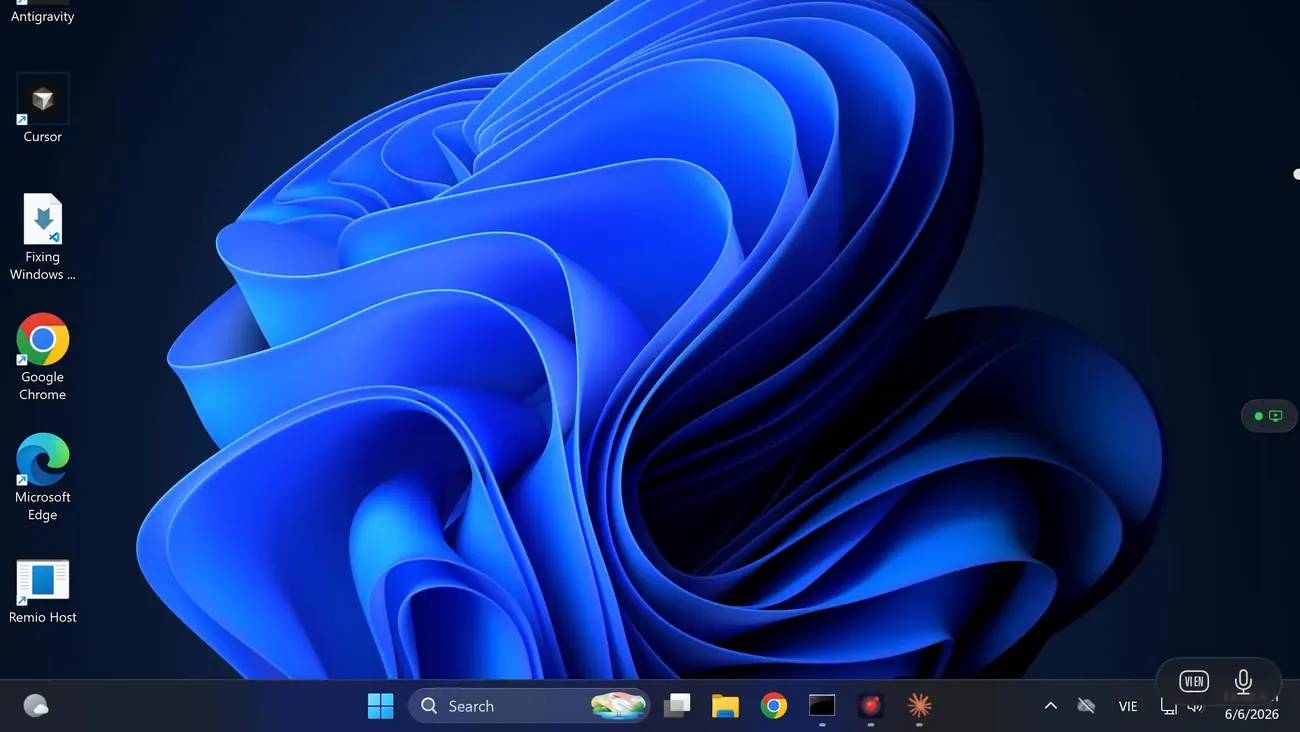
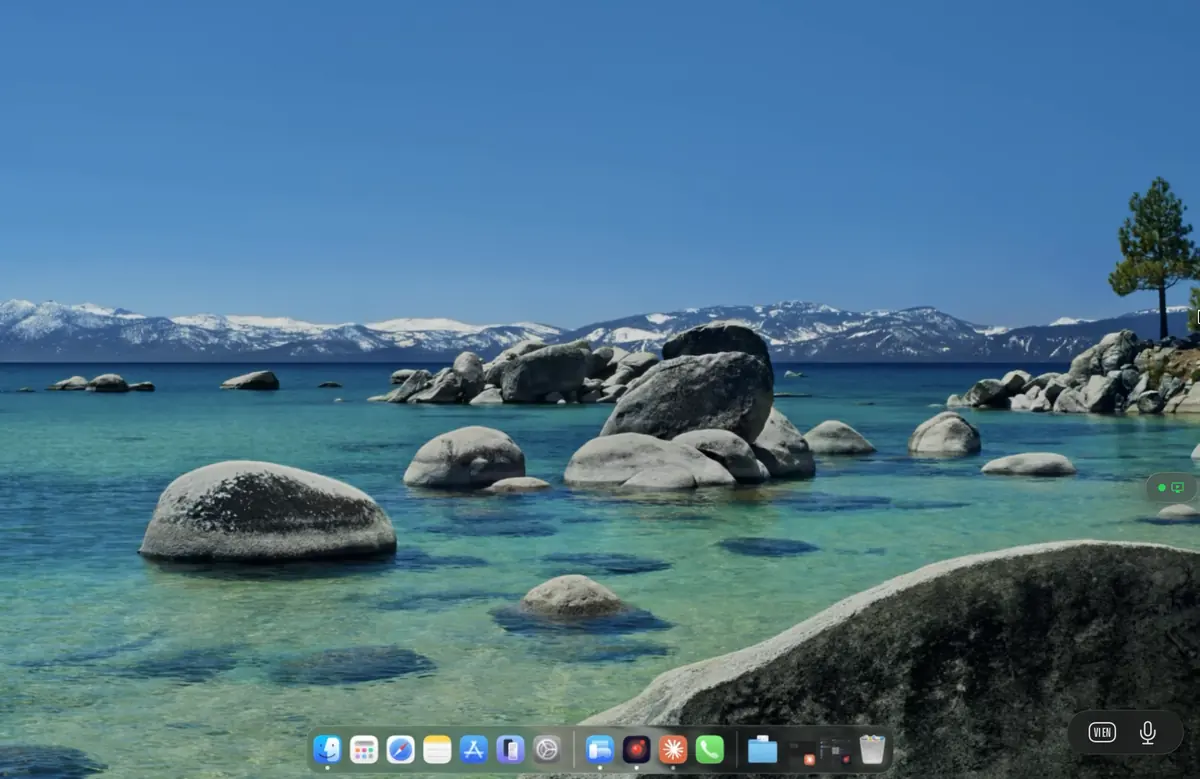
Remio puts a full Windows desktop inside a native Mac app — built in SwiftUI, not wrapped around a browser, and not RDP. Install Remio Host on the PC, install the Remio client on your Mac, pair once with a 4-digit PIN. DXGI capture and NVENC, AMF, or Quick Sync hardware encode on the PC, up to 4K at 120 fps with audio in sync, and your Mac keyboard’s shortcuts mapped to Windows automatically. No Microsoft account, no Pro edition required, no signup wall.

The Mac-to-Windows gap

Why Mac-to-Windows is usually a compromise.

Sitting at a Mac and reaching a Windows PC sounds like the solved direction — Microsoft ships the protocol, after all. In practice it is a maze of edition checks, account walls, and browser tabs. Three structural reasons, none of them your fault.

01
The RDP host gap

Microsoft’s Windows App needs a host your PC may not have

Microsoft does ship a free, polished RDP client for macOS — the Windows App, the renamed Microsoft Remote Desktop. The client is not the problem. The host is: built-in Remote Desktop hosting exists only on Windows Pro, Enterprise, and Education, so a PC running Windows Home cannot accept an RDP connection at all — the option is simply missing from Settings.

That leaves Home users staring at a $99 Pro upgrade for what amounts to one toggle, or at registry patches that break with feature updates. The Windows 11 Home guide walks through the usual workarounds and why most of them age badly.

02
Account and subscription gates

Commercial tools meter exactly this scenario

The commercial remote-desktop products that do bridge a Mac to a Windows PC treat cross-platform access as the thing worth charging for. The pattern is consistent: create an account to pair your devices, sign in on both ends, and find that connecting across networks — the part you actually need — sits behind a subscription or a paid upgrade.

Others tie free use to commercial-use detection heuristics that interrupt your session when an algorithm decides your home office looks too professional. None of this is evil; it is just friction for a thing that should be as simple as typing four digits.

03
Browser-grade streaming

Browser tools stream like browsers

Chrome Remote Desktop is the free fallback everyone tries, and it does work — through a browser tab, with a Google account required on every device. The pipeline is the limit: in practice it is constrained to about 30 fps at 1080p, with no 4:4:4 color, no audio, and no gamepad support, because everything rides a video-call stack designed for faces, not desktops.

Fine for clicking one button on a faraway machine; miserable as a desktop you actually work on. The Chrome Remote Desktop alternative page goes deeper on where browser-grade tops out.

The Remio way

What you get with Remio.

Remio treats Mac-to-Windows as a first-class pairing, not a port. A native host on the PC, a native client on the Mac, and a direct encrypted connection between them — with nothing metered and nothing to sign up for.

01
Native on both ends

A SwiftUI Mac client, a real Windows host

The Remio client for macOS is native SwiftUI — no Electron, no Chromium wrapper, no web view in the rendering path. It runs on macOS 15 Sequoia or later, installs from the Mac App Store or as a notarized download, and decodes the stream in hardware on your Mac’s media engine, so a 4K session costs a few percent of CPU instead of a core.

On the other end, the host is a native C++/WinRT app for Windows 10 (build 19041+) and Windows 11 — Home editions included — that captures the desktop with DXGI straight off the GPU. No RDP, no Terminal Services, no edition checks: Remio brings its own host, and the Windows-to-Mac setup guide walks through it end to end.

02
Picture and sound

Up to 4K at 120 fps with 4:4:4 chroma — and the PC’s audio with it

The Windows host encodes on your GPU’s media engine — Remio auto-detects NVENC on NVIDIA, AMF on AMD, and Quick Sync on Intel, then picks the fastest encoder available. The stream carries up to 4K at 120 fps with 4:4:4 chroma sampling: full color detail on every pixel, so 11-point code in an IDE or a spreadsheet stays sharp instead of smearing into its background the way it does over chroma-subsampled or browser-grade connections. If the PC drives more than one display, you pick which monitor to stream from the session toolbar.

System audio comes along in sync: the host captures whatever the PC is playing and the Mac client plays it through your Mac’s output device. Music in the mix, video calls, alert sounds — the PC sounds like a local machine, not a silent film.

03
Latency

Sub-5 ms LAN · 22 ms WAN same-region — verified May 2026

On the same network, input-to-pixel latency measures under 5 ms; across the internet within the same region, typical sessions measure 22 ms. Both figures were last verified in May 2026 — the benchmarks page documents the methodology.

In practice that means the cursor tracks your hand, scrolling is smooth, and typing feels local. The connection is peer-to-peer whenever a direct path exists; an encrypted relay carries the session only when NAT makes a direct path impossible.

04
Security without accounts

End-to-end encrypted, paired with four digits

Every session is end-to-end encrypted with AES-256-GCM, with ECDHE key exchange over Curve25519. The keys are derived between your two machines and never leave them — Remio’s server only introduces the devices and cannot decrypt the stream.

There is no Microsoft account, no Apple ID, and no Remio account anywhere in the flow. Pairing is a one-time 4-digit PIN shown on the PC; the pairing request expires in 60 seconds if unused, and the trust it creates lives only on the two devices until you revoke it.

05
Price

Completely free — every feature, both platforms

Remio is completely free — every feature, on every platform. The Mac client, the Windows host, 4K streaming, audio, clipboard sync, file transfer, multi-monitor selection, and unattended access are all included. There is no commercial-use detection deciding how you are allowed to use it, and no feature held back.

Setup

Set it up in five minutes.

Two installers, one PIN, no account. The only platform-specific work is the Windows Defender firewall prompt the installer triggers — once.

01
Step 01 — Windows host

Install Remio Host on the Windows PC

On the PC you want to reach (Windows 10 build 19041+ or Windows 11, any edition including Home), download Remio-Host-Setup.exe from remio.net/download and run it. Accept the UAC prompt — admin is needed to install the host to Program Files and to set up the virtual display driver that lets the PC run headless. The host parks in the system tray.

The installer asks once whether to start Remio Host at login. For a PC you plan to reach when nobody is sitting at it, say yes.

02
Step 02 — Firewall

Allow the firewall exception the installer requests

On first run, Windows Defender shows the standard firewall prompt: Allow Remio Host to communicate on these networks. Tick Private networks — and Public too if you ever plan to connect while the PC sits on a hotspot or untrusted Wi-Fi — then click Allow access. Nothing is changed silently; every firewall change is consented.

If you clicked the prompt away too fast, open Windows Security → Firewall & network protection → Allow an app through firewall, find Remio Host, and tick the boxes manually. For most home networks this is all the firewall configuration you will ever do — the Mac client’s outgoing connection establishes the path back.

03
Step 03 — Mac client

Install the Remio client on the Mac

On the Mac (macOS 15 Sequoia or later), open the Mac App Store and search Remio, or download RemioClient.dmg from remio.net/download — either path gives you the same notarized universal binary, and install is one click.

Launch it. There is no signup, no email confirmation, no onboarding tour — it opens straight to an empty device list waiting for its first pairing. The Mac needs no special permissions to act as a client.

04
Step 04 — Pair & connect

Pair with the 4-digit PIN and connect

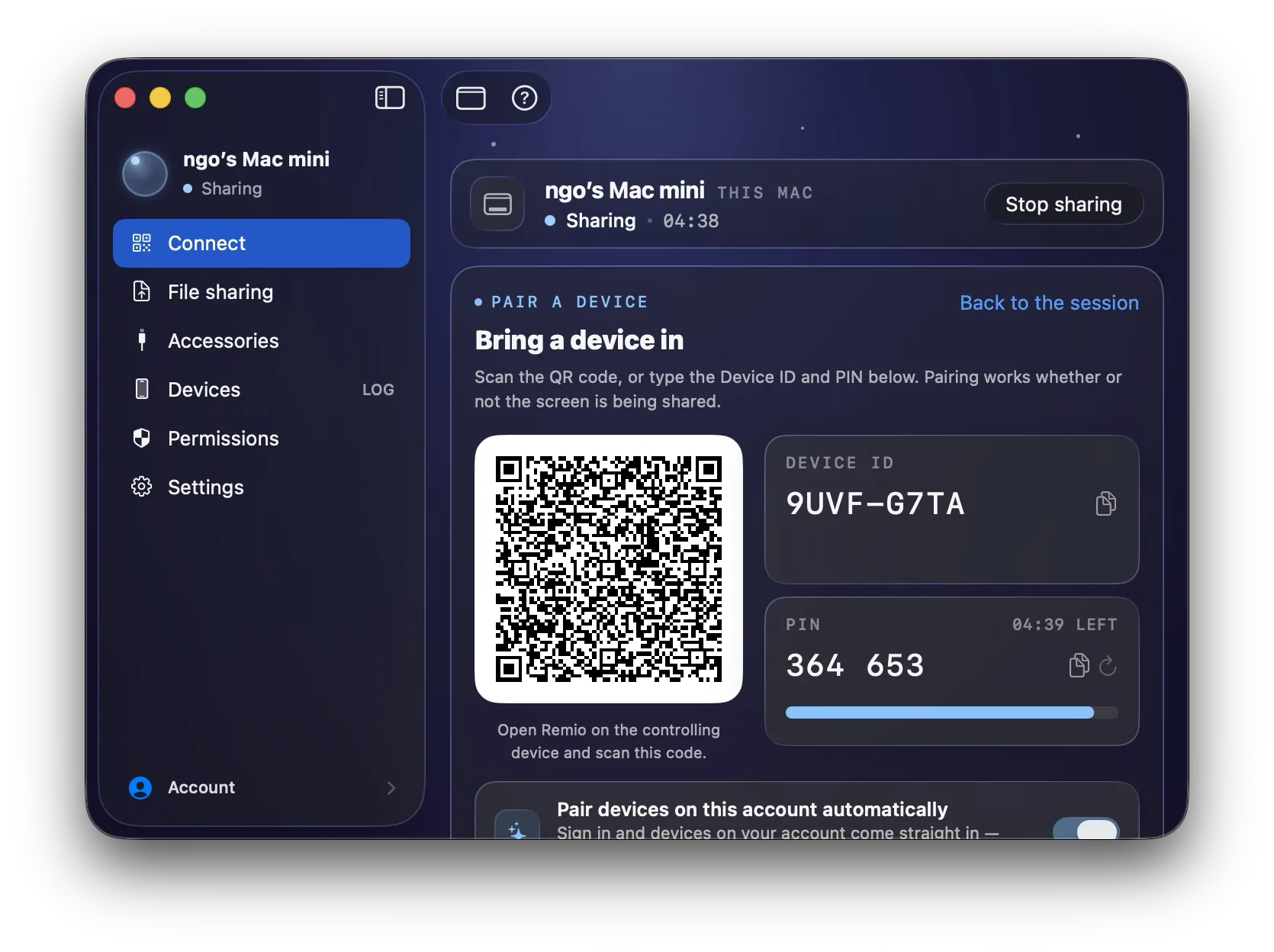
Right-click the Remio Host tray icon on the PC and choose Show pairing PIN. On the Mac, click Add device and type the one-time 4-digit code. The pairing request expires in 60 seconds if unused, so a code that leaks is worthless moments later; the trust it creates lives only on the two devices until you revoke it from the host.

Then click the PC’s name. Remio works out the best route automatically — a direct peer-to-peer connection on the same network (under 5 ms), or an encrypted relay if a direct path is not available. The session opens at the PC’s native resolution with audio in sync. Next time, the PC is one click away.

05
Step 05 — Optional

Unattended access and Wake-on-LAN

If the PC lives somewhere nobody sits — an office after hours, a tower at home while you travel — enable unattended access on the host so you can connect without someone clicking accept on the other end. Pair it with Wake-on-LAN and you can wake the sleeping PC and be on its desktop a few seconds later.

Wake-on-LAN takes two toggles on the Windows side — one in UEFI, one on the network adapter — and the guide covers both.

Day-to-day details

Keyboard and the little things.

A cross-platform session lives or dies on the small stuff: whether Cmd+C copies, whether scrolling goes the right way, whether the clipboard follows you. This is the part Remio sweats.

01
Keyboard & modifiers

Your Mac keyboard, speaking fluent Windows

macOS uses Cmd as the primary modifier; Windows uses Ctrl. By default, Remio swaps them automatically based on the host platform so your shortcuts feel native — Cmd+C, Cmd+V, Cmd+Z, and Cmd+S on your Mac keyboard fire Ctrl+C, Ctrl+V, Ctrl+Z, and Ctrl+S on the PC, without retraining your hands.

Everything else forwards too: every key including the F-row and modifiers passes through, so app-specific chords and system shortcuts land intact. Power users who run their own remapping tools can turn the automatic swap off in Preferences → Keyboard → Auto Modifier Remap — the keyboard layout guide covers layouts, IMEs, and scancode-vs-character mode.

02
Scroll direction

Scrolling goes the way your trackpad says

Because the client is a native Mac app, scrolling reaches Remio the way macOS hands it to every Mac app — your own scroll direction setting, momentum and all — and the session forwards it to Windows as plain scroll input. Two-finger scrolling moves the Windows page the way your hands expect, with no registry edits on the PC and no flipping a toggle in two places.

03
Clipboard

Copy on one machine, paste on the other

Text and image clipboards sync automatically over the same encrypted channel as the video. Copy a snippet in a Windows app and paste it into an email on the Mac, or the other way around — no setup, no extra clicks.

04
File transfer

Files move over the same encrypted channel

File transfer rides the session’s encrypted connection, so moving a document from the PC to the Mac never detours through a cloud drive or an email-to-self. Like everything in the stream, it is end-to-end encrypted between your two machines.

Real-world pairings

Common setups.

The same two apps, three very different desks. If one of these looks like yours, the five-minute setup above is all that separates you from it.

Gaming PC on the desk, MacBook on the couch

The tower with the serious GPU stays wired to Ethernet; the MacBook follows you around the house. Pair a controller to the MacBook and play — competitive titles stream at 144 fps at 1440p, AAA titles at 60 to 90 fps in 4K HDR, and the cloud gaming page has the per-title measurements and tuning.

Work PC at the office, iMac at home

The office PC holds the licensed apps and the project files; the iMac at home has the better screen and the better chair. Connect over the internet with no port forwarding and no VPN, enable unattended access so nobody has to click accept, and add Wake-on-LAN for the mornings the PC went to sleep overnight.

The dev box with the GPU

The machine that compiles, trains, and renders lives under a desk; the Mac is where you like to type. Stream the IDE at 4:4:4 so small code stays sharp, keep the clipboard in sync, and move build artifacts over encrypted file transfer — the developers page covers the workflows end to end.

Side by side

Mac-to-Windows vs the alternatives.

The six rows that decide it for this direction. Where an alternative is genuinely fine, the table says so.

Capability Remio Microsoft Windows App (RDP) Chrome Remote Desktop
Account required Windows credentials on the host; Microsoft account or AD/Entra in most setups Google account on every device
Hosts on Windows Home No — the RDP host is Pro/Enterprise only; Home cannot accept connections Yes
Fidelity 1080p at 30 fps typical; 4:4:4 only with AVC444 tuning ~30 fps at 1080p in practice; no 4:4:4
Audio Yes — redirected over the RDP channel No — host audio only
Gamepad No No gamepad support
Price Free client — but a Home PC needs the $99 Pro upgrade to host Free

Want the full matrices? See Remio vs Microsoft Remote Desktop and Remio vs Chrome Remote Desktop, or browse the compare hub.

FAQ

Things people ask first.

Five questions the Mac-to-Windows direction tends to raise — honest answers below.

Yes. The restriction you have heard about belongs to Microsoft's RDP host, which is Pro-only — Windows Home cannot accept incoming Remote Desktop connections. Remio does not use RDP at all: it brings its own host, a native C++/WinRT app that runs on Windows 10 (build 19041+) and Windows 11, Home editions included. No Pro upgrade, no registry patch, no group policy edit.
No. Remio requires no account of any kind — no Microsoft account, no Apple ID, and no Remio account either. Pairing is purely local: the Windows host shows a one-time 4-digit PIN, you type it into the Mac client, and the pairing request expires in 60 seconds if unused. No email, password, or profile is created at any point.
Yes. The Windows host captures with DXGI and encodes on your GPU — NVENC, AMF, or Quick Sync — so games stream at full speed. Competitive titles run at 144 fps at 1440p, AAA titles run at 60 to 90 fps in 4K HDR, and the ceiling is 4K at 120 fps, capped by the host hardware encoder. Controllers work too: pair an Xbox or PlayStation controller to the Mac via Bluetooth and Remio forwards it to the PC as a native gamepad, rumble included.
Yes. macOS uses Cmd as the primary modifier where Windows uses Ctrl, and Remio remaps them automatically by default — Cmd+C on your Mac keyboard fires Ctrl+C on the PC, so copy, paste, undo, and save land the way your hands expect. Every key forwards, including the F-row and modifiers, and you can turn the mapping off in Preferences → Keyboard → Auto Modifier Remap if you prefer raw keys.
Yes. Remio is completely free — every feature, on every platform. The Mac client, the Windows host, 4K streaming with 4:4:4 chroma, audio, clipboard sync, file transfer, multi-monitor, unattended access, and end-to-end encryption are all included. There is no account and nothing held back.
Free, all features · no account · no card

Your Windows PC, one PIN away.

Install Remio Host on the PC you want to reach. Install the Remio client on your Mac. Pair once with a one-time 4-digit PIN — that is the whole setup, and it costs nothing.

macOS 15+ client · Windows 10 & 11 host, Home included · free, no account, no card.