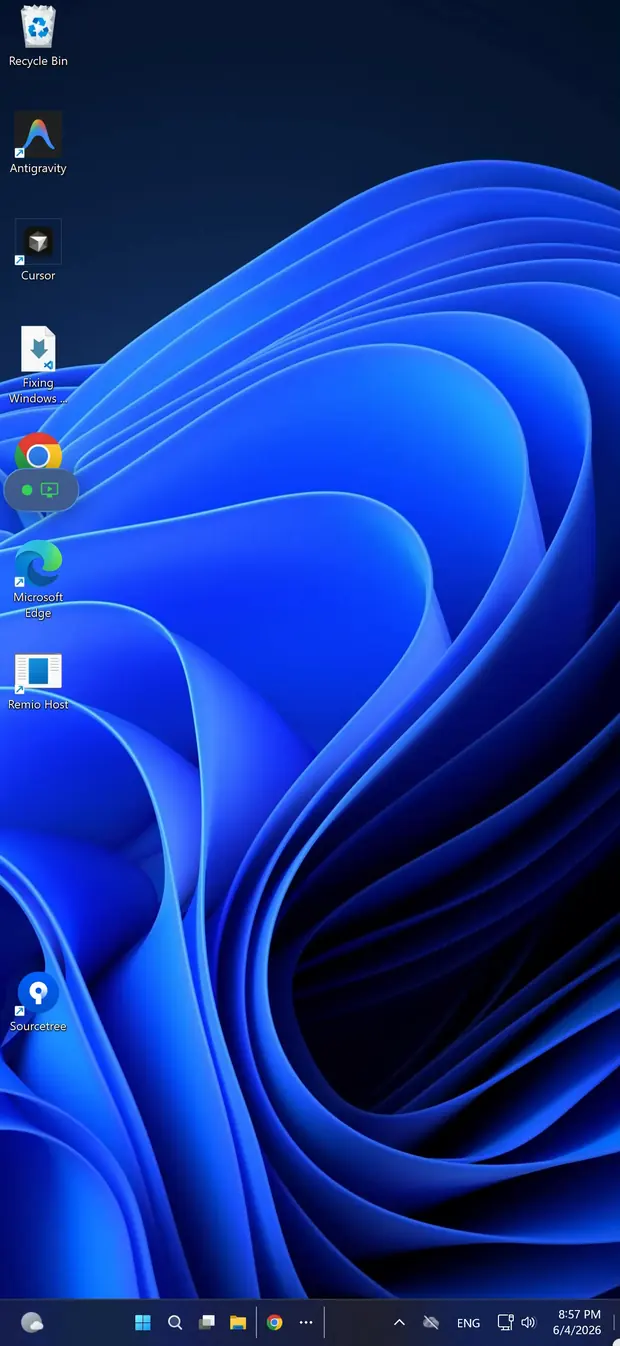
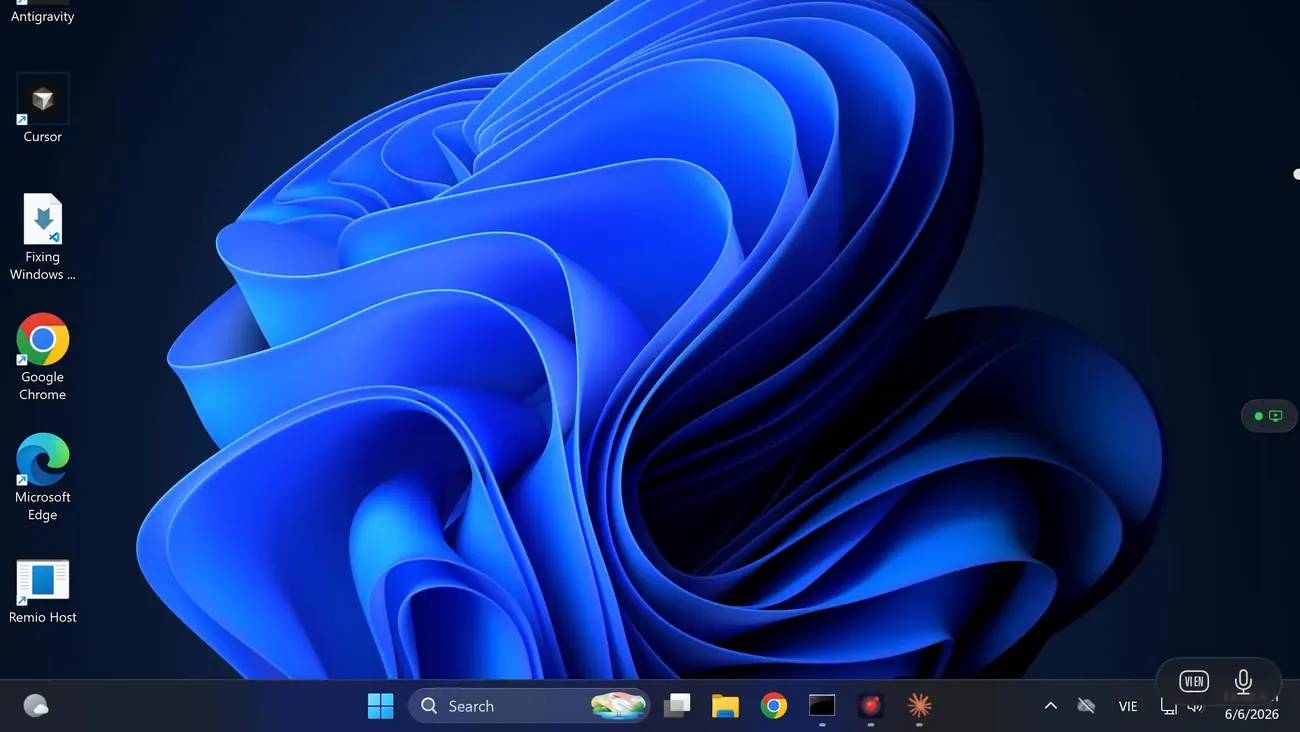
iPad · second display for Windows

A second monitor for your PC. It’s the iPad you already own.

Remio installs a virtual display driver on the Windows host — a software-defined monitor Windows treats as real. It shows up in Display Settings next to your physical monitors, you drag windows onto it, and the iPad shows that display wirelessly. A real extended desktop, not a mirror. Free, no subscription, no account — the second screen Duet Display charges for.

Not a mirror

A real second display, not a mirror.

A virtual display is a software-defined monitor the OS treats as real — you can drag windows onto it, set its resolution and refresh rate, even change its DPI. It shows up alongside your physical displays in Windows Display Settings, and your iPad becomes the screen that shows it.

01
Step 01 — Windows sees a monitor

A separate desktop surface, not a copy of your PC screen.

Open Windows Display Settings and the Remio Virtual Display is listed right next to your physical monitors. Extend the desktop onto it and it behaves like a monitor you plugged in: drag your browser, Excel, or Teams onto it and the window stays there while you work on the main screen. Arrange it left, right, or above your physical display and the cursor crosses the edge accordingly.

Because it is a display Windows treats as real, you configure it like one — resolution, refresh rate, scale, and orientation all live in the same Display Settings panel as every other monitor. Nothing about it is special-cased.

02
Step 02 — The iPad shows it, wirelessly

Stream just that virtual canvas — the PC’s physical monitors stay untouched.

The iPad client connects to the host and shows the virtual display at its full resolution and native DPI. What you parked there stays there; what is on your physical monitors never leaves the desk. Anyone looking at the PC sees your main screen exactly as before — the iPad is simply an extra surface beside it.

Need a different screen for a moment? Hover the top of the client window to reveal the toolbar and tap the Display switcher — you can jump between the PC’s displays and the stream re-syncs in under a second.

03
Step 03 — Sized exactly how you want

1080p to 5K, at 60 or 120 Hz, created in two clicks.

Add the virtual display from the host’s settings: pick a resolution (1080p, 1440p, 4K, 5K) and a refresh rate (60 Hz, 120 Hz), and it appears immediately. Want pixel-exact streaming? Open Display Settings, find the Remio Virtual Display, and set Scale to 100%.

The same trick runs a laptop headless: lid closed, no monitor attached, the virtual display becomes the primary so the host has something to capture. One driver, several jobs.

vs Duet Display & spacedesk

How it stacks up against Duet Display and spacedesk.

Duet Display is the best-known paid second-screen app; spacedesk is the best-known free one for Windows. Both are solid products. The table sticks to categories we are certain of — pricing model, platforms, accounts — not guesses about either vendor’s internals.

Capability Remio Duet Display spacedesk
Pricing modelSubscriptionFree
Account requiredSubscription sign-inNone
Extends the desktop (not just mirror)YesYes
ConnectionWired USB or wirelessLocal network
Host platformsWindows and macOSWindows only
iPad client with touch inputYes — also Android tabletsYes
End-to-end encryption

Dashes mean we make no claim either way — check each vendor’s site for current details. No third-party prices are listed because they change; the categories above do not.

Bottom line: Duet is mature, supports a wired USB connection, and also works with Android tablets — if you specifically want a cable, it is the established choice. spacedesk is likewise free and built for Windows hosts, and for basic extending it may serve you fine. Remio’s case is the combination: completely free with every feature, no account on either end, end-to-end encryption, a native iPad client with touch and Pencil input — and the same two apps double as a full remote desktop when you are away from the PC.

Touch & Apple Pencil

Touch and Apple Pencil input on the extended display.

The iPad is not a passive screen. Tap a button in the window you dragged over and it clicks. Scroll with two fingers and the page scrolls. Sketch with the Pencil and pressure and tilt forward to the host. The glass you already own becomes an input surface for your PC.

Touch lands in Windows apps as pointer input.

Tap, drag, two-finger scroll — touches on the iPad arrive in the Windows apps sitting on the extended display as ordinary pointer input. Close a Teams thread with a tap, scroll a reference PDF with a flick, drag a card across a Trello board with a finger. No mode switch, no “take over input” toggle — the mouse on the PC and the fingers on the iPad coexist.

Pencil pressure and tilt, keyboard pass-through.

Apple Pencil forwards pressure and tilt to the host, so sketching and annotating on the window you parked on the iPad responds to how hard you press. Hardware keyboards attached to the iPad pass through every key, every modifier, every F-row — useful when the iPad is the screen closest to your hands. Both input streams are encrypted inside the same session envelope as the pixels.

Wireless and private

Wireless first, never relayed.

On the same network the iPad and the PC connect directly to each other, peer-to-peer — your pixels never touch a third-party server. On a wired LAN the link measures in the sub-5 ms class, Remio’s own numbers, verified May 2026. No cloud sitting between the two devices, no account, no sign-in.

Direct device-to-device, by default.

Pair the iPad and the PC once with a 4-digit one-time PIN — the pairing window lasts 60 seconds, and the code is useless afterward. From then on the two devices find each other on the local network and connect directly. No email, no password, no “sign in to continue.” The pairing record lives on your devices, not on a server.

End-to-end encrypted, fresh keys per session.

Every session is encrypted end-to-end with AES-256-GCM, with keys negotiated directly between your devices over ECDHE on Curve25519. The screen pixels, your touches, your Pencil strokes, your typing — all of it travels inside that envelope. Anyone snooping the Wi-Fi sees scrambled noise, and Remio cannot decrypt the stream either: the keys never leave your devices.

If the iPad and the PC are ever on different networks, the connection falls back to an encrypted relay — but the relay forwards only ciphertext it cannot read. Same security guarantee, slightly higher latency. For the second-monitor setup on your desk, it is direct, every time.

Setup

Set it up in five minutes.

Two free apps, one PIN, one virtual display. The full walkthrough with screenshots lives in the multi-monitor configuration guide.

01
Step 01 — The PC

Install Remio Host on the Windows PC.

Grab the free installer from the download page. It runs on Windows 10 (build 19041 or later) and Windows 11 — Home editions included. Power users can winget install Remio.RemioHost instead.

02
Step 02 — The iPad

Install Remio on the iPad.

Get the free Remio client from the App Store — it runs on any iPad with iPadOS 18 or later. No account, no sign-up. Install it, open it, done.

03
Step 03 — Pair once

Enter the 4-digit one-time PIN.

The host shows a 4-digit one-time PIN with a 60-second window — type it on the iPad, or scan the QR code instead. The two devices remember each other, so you do this exactly once.

04
Step 04 — The virtual display

Add a virtual display on the host.

In the Remio Host system tray menu, open Settings → Display → Virtual Display and click Add. Pick a resolution (1080p, 1440p, 4K, 5K) and refresh rate (60 Hz, 120 Hz). The display appears immediately — check Windows Display Settings and it is listed alongside your physical monitors.

05
Step 05 — Extend

Show it on the iPad and start dragging windows.

Connect from the iPad and pick the virtual display in the client toolbar’s Display switcher. Arrange the new display in Windows Display Settings so the cursor crosses where your iPad actually sits, then drag windows over. Full steps and troubleshooting: multi-monitor configuration.

What people do with it

Use it for code, dashboards, or just Teams.

A second display is whatever you make of it. The iPad is already on your desk — here is what people park on it once Windows starts treating it as a monitor.

Docs beside your code

Visual Studio or VS Code on the main monitor, the documentation or the ticket on the iPad. No Alt-Tab roulette between the reference and the work — both stay on screen, full size.

Teams exiled to the iPad

Banish Teams or Slack to the second display. You can glance over and reply when something matters, but the chat stops competing with the work on your main monitor.

A tutorial pinned while you work

Following a video tutorial in Premiere, Blender, or Excel? Put the video on the iPad, full screen, and keep your timeline, viewport, or sheet untouched on the PC.

Trading dashboards and tickers

TradingView or your broker’s charts on the iPad while you do everything else on the PC. A dedicated finance display without another monitor stand on the desk.

Reference images for design work

Mood board, reference photos, or a Pinterest grid on the iPad while you work in Figma or Photoshop on the PC. The reference stays next to the canvas at full resolution.

Email and calendar, parked

Outlook lives on the iPad: inbox triage and the day’s schedule visible at a glance, while the entire main monitor stays dedicated to the thing you are actually doing.

Looking for something else?

When to use the full remote experience instead.

This page is about using the iPad as a second display alongside the PC — the PC is in front of you and the iPad extends its desktop. If you want the opposite — the entire Windows desktop showing up on the iPad as the primary view, with the PC somewhere else (another room, the office, another city) — that is a different use case, and the same two apps cover it.

Running Windows 11 Home? Microsoft reserves the Remote Desktop host for Pro editions — see our guide to a free remote desktop on Windows 11 Home. Playing your PC games from the couch is its own setup. And if your other machine is a Mac, start with connecting an iPad to a Mac. Same app, different mode — switch any time without reinstalling anything.

FAQ

Common questions

Five quick answers to the things people ask before they download.

Yes — every feature, for everyone. There is no subscription, no trial clock, no locked tier, and no account to create. That includes the virtual display driver, 4K streaming, touch and Apple Pencil input, and end-to-end encryption. Second-screen apps for Windows usually run on a subscription; Remio does not.
Yes. Remio installs a virtual display driver on the Windows host. A virtual display is a software-defined monitor the operating system treats as real — you can drag windows onto it, set its resolution and refresh rate, even change its DPI. It shows up alongside your physical displays in Windows Display Settings, and the iPad shows that display wirelessly.
No. The iPad and the PC connect over your Wi-Fi network, directly device-to-device. If you want the steadiest latency, plug the PC into your router over Ethernet — the iPad stays wireless and still benefits from the wired leg. There is no USB tether and nothing to plug into the iPad.
Yes. The Remio host is a native Windows app that runs on Windows 10 (build 19041 or later) and Windows 11, Home editions included. It does not depend on Remote Desktop or any feature Microsoft reserves for Pro editions, so there is nothing to unlock or work around.
Any iPad that runs iPadOS 18 or later, with the free Remio client from the App Store. The virtual display streams at whatever resolution you pick on the host, so a newer iPad simply shows the same desktop on a sharper screen. An iPhone running iOS 18 or later works too.
Free, all features · no account · no card

A second screen, without the subscription.

Remio runs on Windows 10 (build 19041 or later) and Windows 11 — Home editions included — and on any iPad with iPadOS 18 or later. Download the two free apps, pair once with a 4-digit one-time PIN, add a virtual display, and the iPad starts earning its keep as the monitor you did not have to buy.

Free for everyone. End-to-end encrypted. No account required.