Windows 10 & 11 client · macOS 15+ host · free

Your Mac, on your Windows screen.

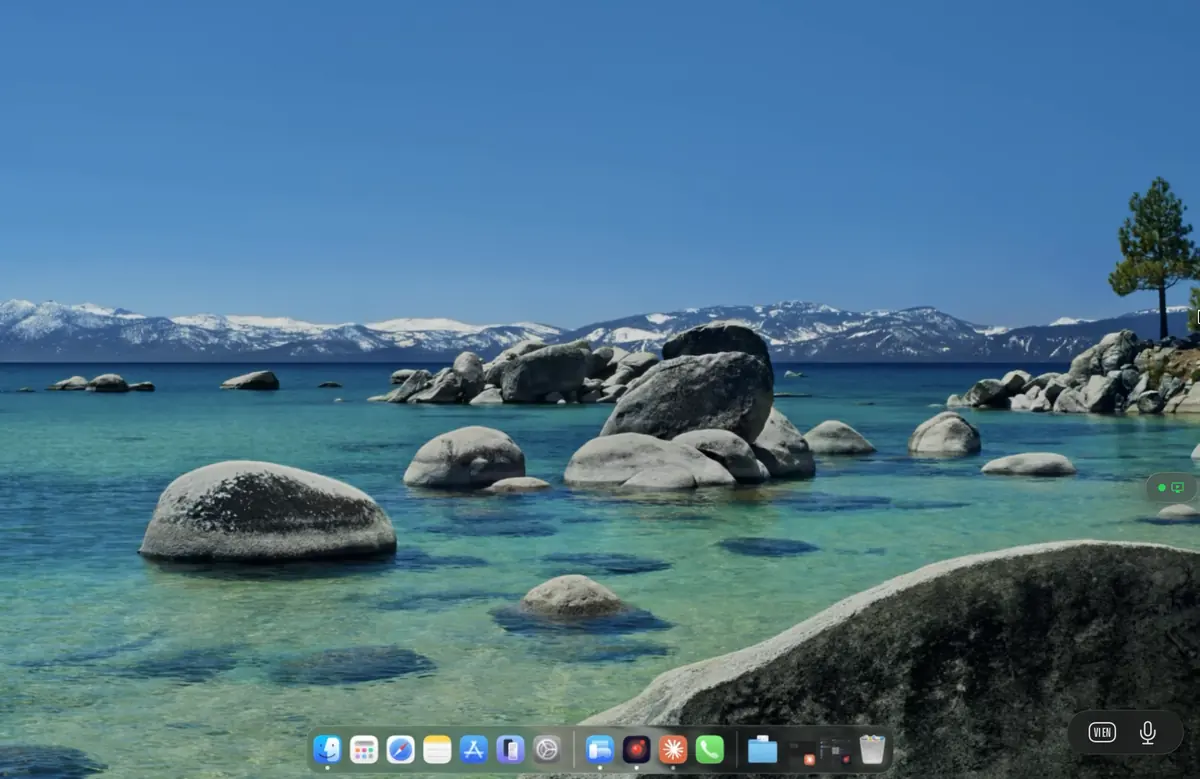
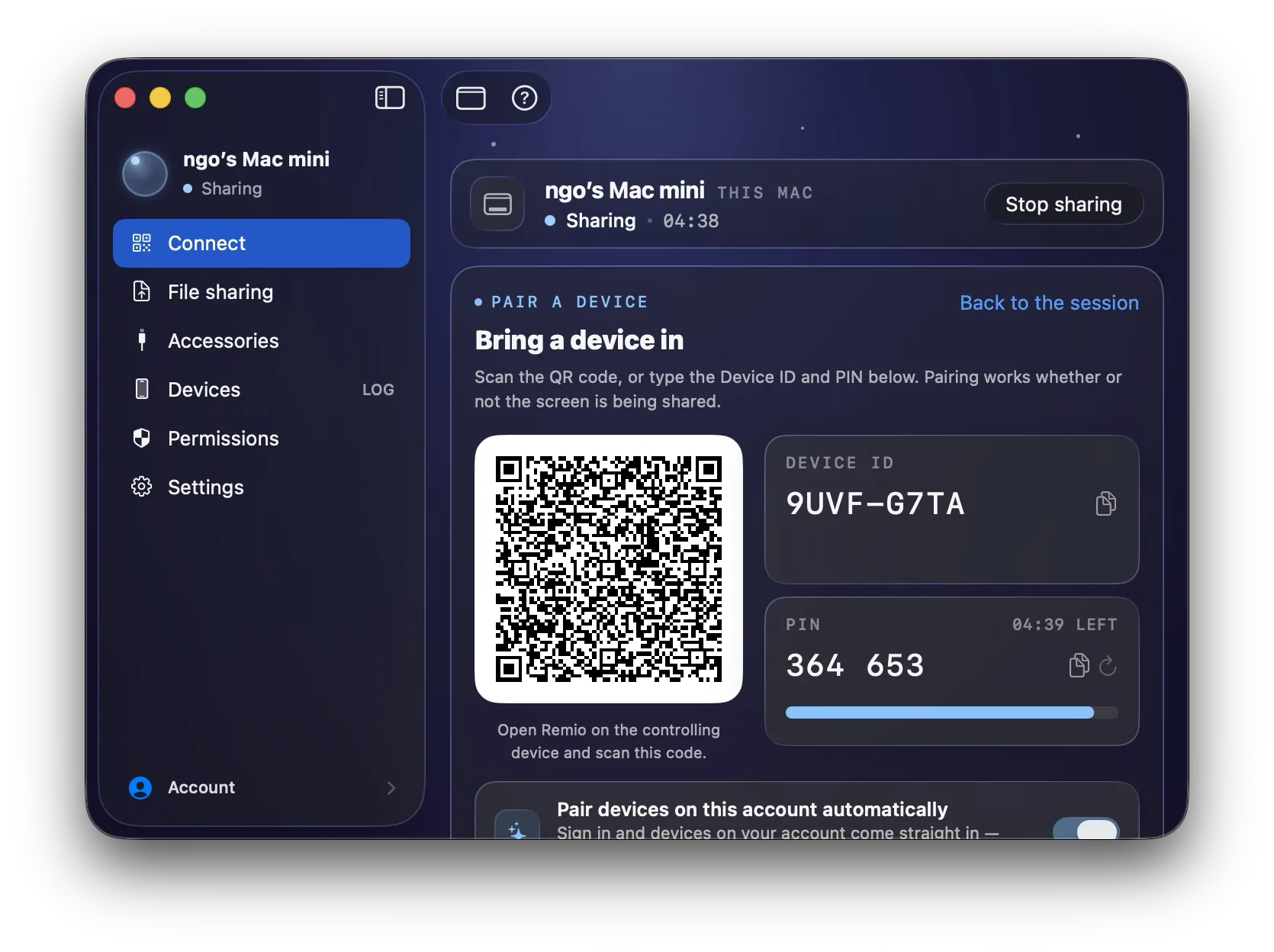
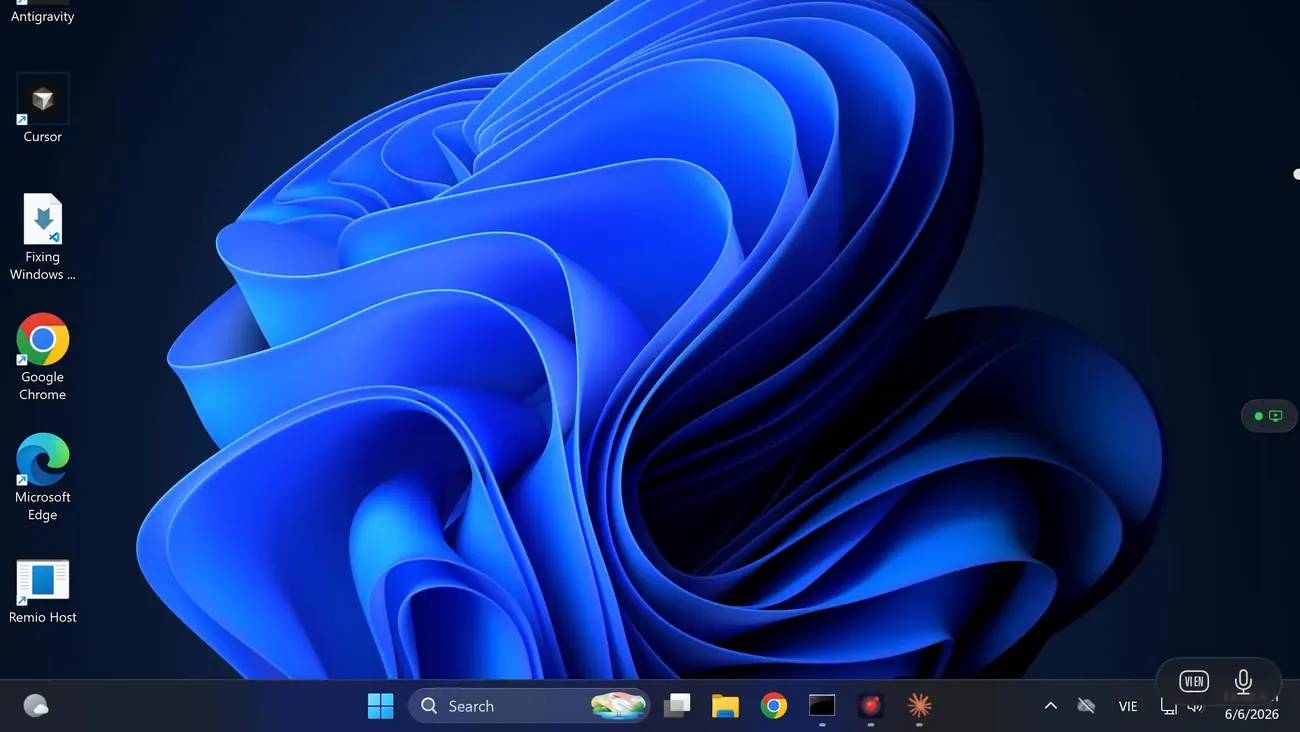
Remio puts a full macOS desktop inside a native Windows app — not a browser tab, not a 2005-era VNC viewer. Install Remio Host on the Mac, install the Remio client on your Windows PC, pair once with a 4-digit PIN. Hardware-decoded video up to 4K, audio in sync, and your PC keyboard’s shortcuts mapped to the Mac automatically. No Apple ID, no Microsoft account, no signup wall.

The Windows-to-Mac gap

Why this pairing is usually painful.

Reaching a Windows PC from elsewhere is a solved problem — RDP has existed for decades. The reverse direction, sitting at a Windows PC and reaching a Mac, has always been the awkward one. Three structural reasons, none of them your fault.

01
VNC-class screen sharing

Apple Screen Sharing has no official Windows viewer

macOS ships a built-in Screen Sharing service, and for Mac-to-Mac sessions it works well. But Apple has never shipped a Screen Sharing client for Windows — the only way in from a PC is a third-party VNC viewer talking to the Mac’s VNC-compatible service.

That route works, technically. It also looks like it did in 2005: a heavily compressed framebuffer, low frame rates, text with color fringing, no audio — the VNC protocol carries no audio channel at all — and latency that makes scrolling feel like steering a barge. Fine for clicking one button on a server; miserable as a desktop you actually work on.

02
No RDP host on macOS

The Windows-native protocol cannot reach a Mac

Microsoft Remote Desktop is the tool every Windows user already knows, and Microsoft does ship an RDP client for the Mac. But the other half does not exist: there has never been an RDP server for macOS. A Windows PC speaking RDP has nothing on the Mac to talk to.

So the familiar option is off the table from the start. Whatever bridges a Windows client to a Mac host has to bring its own protocol, its own host app, and its own input translation — which is exactly the part most tools do halfway.

03
Account and subscription gates

Commercial tools meter exactly this scenario

The commercial remote-desktop products that do bridge Windows to Mac treat cross-platform access as the thing worth charging for. The pattern is consistent: create an account to pair your devices, sign in on both ends, and find that connecting across networks — the part you actually need — sits behind a subscription or a paid upgrade.

Jump Desktop, one of the better ones, is a $29.99 one-time purchase with a $4.99/month Connect Pro subscription for its automatic remote setup. Others tie free use to commercial-use detection heuristics. None of this is evil; it is just friction for a thing that should be as simple as typing four digits.

The Remio way

What you get with Remio.

Remio treats Windows-to-Mac as a first-class pairing, not a port. A native host on the Mac, a native client on the PC, and a direct encrypted connection between them — with nothing metered and nothing to sign up for.

01
Native Windows client

A real Windows app, decoding on your GPU

The Remio client for Windows is native C++/WinRT — no Electron, no Chromium wrapper, no web view in the rendering path. Video from the Mac arrives as H.265 (or H.264 on older GPUs) and is decoded in hardware by your PC’s media engine, so a 4K stream costs a few percent of CPU instead of a core.

It is version 1.8.7, runs on Windows 10 and 11 (x64), and installs from a signed EXE on the download page — binaries are hosted on GitHub releases, with release notes and SHA-256 checksums published per build. If SmartScreen shows “Windows protected your PC”, click More info → Run anyway: we are a small team, Microsoft’s reputation system requires expensive certificates to skip that screen, and the download is signed end-to-end so auto-updates can verify it came from us.

02
Picture and sound

Up to 4K with 4:4:4 chroma — and the Mac’s audio with it

The Mac host streams up to 4K with 4:4:4 chroma sampling — full color detail on every pixel, so 11-point text in Xcode or a spreadsheet stays sharp instead of smearing into its background the way it does over chroma-subsampled or VNC-class connections.

System audio comes along in sync: the host captures whatever the Mac is playing and the Windows client plays it through your PC’s output device. Music in the mix, video calls, alert sounds — the Mac sounds like a local machine, not a silent film.

03
Latency

Sub-5 ms LAN · 22 ms WAN same-region — verified May 2026

On the same network, input-to-pixel latency measures under 5 ms; across the internet within the same region, typical sessions measure 22 ms. Both figures were last verified in May 2026 — the benchmarks page documents the methodology.

In practice that means the cursor tracks your hand, scrolling is smooth, and typing feels local. The connection is peer-to-peer whenever a direct path exists; an encrypted relay carries the session only when NAT makes a direct path impossible.

04
Security without accounts

End-to-end encrypted, paired with four digits

Every session is end-to-end encrypted with AES-256-GCM, with ECDHE key exchange over Curve25519. The keys are derived between your two machines and never leave them — Remio’s server only introduces the devices and cannot decrypt the stream.

There is no Apple ID, no Microsoft account, and no Remio account anywhere in the flow. Pairing is a one-time 4-digit PIN shown on the Mac; the pairing request expires in 60 seconds if unused, and the trust it creates lives only on the two devices until you revoke it.

05
Price

Completely free — every feature, both platforms

Remio is completely free — every feature, on every platform. The Windows client, the Mac host, 4K streaming, audio, clipboard sync, file transfer, multi-monitor, and unattended access are all included. There is no commercial-use detection deciding how you are allowed to use it, and no feature held back.

Setup

Set it up in five minutes.

Two installers, one PIN, no account. The only platform-specific work is granting the Mac’s two privacy permissions — once.

01
Step 01 — Mac host

Install Remio Host on the Mac

On the Mac you want to reach (macOS 15 Sequoia or later), download Remio-Host.pkg from remio.net/download — signed and notarized by Apple, so Gatekeeper opens it without warning. Launch Remio Host once; it parks in the menu bar.

macOS will prompt for two permissions: Screen Recording (System Settings → Privacy & Security → Screen & System Audio Recording → toggle Remio Host on) and Accessibility (System Settings → Privacy & Security → Accessibility → toggle Remio Host on). Without the first the host has nothing to send; without the second your clicks and keystrokes from the PC do nothing. After enabling each toggle, quit and relaunch the host — macOS only picks up new permissions on app restart. You do this once.

02
Step 02 — Windows client

Install the Remio client on Windows 10 or 11

On the Windows PC, grab the client EXE (v1.8.7, x64) from remio.net/download. Run it — standard signed installer, done in seconds. If SmartScreen shows “Windows protected your PC”, click More info → Run anyway; the binary is signed end-to-end and checksums are published with each release.

Launch the client. There is no signup, no email confirmation, no onboarding tour — it opens straight to an empty device list waiting for its first pairing.

03
Step 03 — Pair

Pair with the 4-digit PIN

Click the Remio Host menu bar icon on the Mac and select Show pairing PIN. A panel appears with a one-time 4-digit code. On the Windows client, click Add device and type the four digits.

Pairing completes in under a second. The PIN is single-use and the pairing request expires in 60 seconds, so a code that leaks is worthless moments later. The relationship between the PC and the Mac is permanent until you revoke it from the host menu bar — no account, email, or password was created at any point.

04
Step 04 — Connect

Click the Mac and stream

The Mac now shows up in the Windows client as a named device. Click it. Remio works out the best route automatically — a direct peer-to-peer connection on the same network (under 5 ms), or an encrypted relay if a direct path is not available. The session opens at the Mac’s native resolution with audio in sync.

Next time, the Mac is one click away. No PIN to retype, nothing to sign back into.

05
Step 05 — Optional

Unattended access and Wake-on-LAN

If the Mac lives somewhere nobody sits — an office after hours, a desk at home while you travel — enable unattended access on the host so you can connect without someone clicking accept on the other end. Pair it with Wake-on-LAN and you can wake the sleeping Mac and be on its desktop a few seconds later.

On a desktop Mac, also open System Settings → Energy and enable Wake for network access so the host responds instantly when the client knocks.

Day-to-day details

Keyboard, shortcuts, and the little things.

A cross-platform session lives or dies on the small stuff: whether Ctrl+C copies, whether the clipboard follows you, whether the second monitor is reachable. This is the part Remio sweats.

01
Keyboard & modifiers

Your PC keyboard, speaking fluent Mac

macOS uses Cmd as the primary modifier; Windows uses Ctrl. By default, Remio swaps them automatically based on the host platform so your shortcuts feel native — Ctrl+C, Ctrl+V, Ctrl+Z, and Ctrl+S on your PC keyboard fire Cmd+C, Cmd+V, Cmd+Z, and Cmd+S on the Mac, without retraining your hands.

Everything else forwards too: every key including the F-row and modifiers passes through, so app-specific chords and system shortcuts land intact. Power users who run their own remapping tools can turn the automatic swap off in Preferences → Keyboard → Auto Modifier Remap — the keyboard layout guide covers layouts, IMEs, and scancode-vs-character mode.

02
Clipboard

Copy on one machine, paste on the other

Text and image clipboards sync automatically over the same encrypted channel as the video. Copy a snippet in a Mac app and paste it into an email on the PC, or the other way around — no setup, no extra clicks.

03
File transfer

Files move over the same encrypted channel

File transfer rides the session’s encrypted connection, so moving a document from the Mac to the PC never detours through a cloud drive or an email-to-self. Like everything in the stream, it is end-to-end encrypted between your two machines.

04
Multi-monitor

Pick which Mac display you see

If the Mac drives more than one display, the client lets you switch between any of the host’s connected displays from the session toolbar. Each display streams at its native resolution; you view one at a time to keep bandwidth tight. The multi-monitor guide has the full options.

Real-world pairings

Common setups.

The same two apps, three very different households. If one of these looks like your desk, the five-minute setup above is all that separates you from it.

MacBook on the shelf, gaming PC on the desk

Your gaming PC already has the 32-inch monitor, the mechanical keyboard, and the good chair. Leave the MacBook docked on a shelf and open its desktop full-screen from the PC — Xcode, Final Cut, Safari testing — using the hardware you already love, with Ctrl shortcuts auto-mapped to Cmd.

Office Mac mini, Windows laptop on the road

The Mac mini at the office holds the licensed apps and the project files; the laptop in your bag runs Windows. Connect over the internet with no port forwarding or VPN, enable unattended access so nobody has to click accept, and add Wake-on-LAN to reach it after the office lights go out.

Side by side

Windows-to-Mac vs the alternatives.

The five rows that decide it for this direction. Where an alternative is genuinely fine, the table says so.

Capability Remio Third-party VNC viewers Jump Desktop Apple Screen Sharing
Account required Usually none for direct connections Jump Desktop account for automatic remote setup macOS user credentials; Apple ecosystem only
Fidelity Compressed VNC framebuffer; low frame rates, color fringing on text High-quality stream; 4:4:4 not advertised VNC framebuffer for third-party viewers; best quality reserved for Mac-to-Mac
Audio No — the VNC protocol carries no audio channel Yes Not over the VNC path a Windows viewer uses
Price Free viewers exist $29.99 one-time + $4.99/month Connect Pro for automatic remote access Included with macOS
Windows support Yes — many viewers, varying quality Yes — Windows client available None — Apple ships no Windows viewer

Want the full matrices? See Remio vs Jump Desktop and Remio vs Apple Screen Sharing, or browse the compare hub.

FAQ

Things people ask first.

Five questions the Windows-to-Mac direction tends to raise — honest answers below.

No. Remio does not use Apple ID, iCloud, or any identity service — and there is no Remio account to sign up for either. Pairing is purely local: the Mac shows a one-time 4-digit PIN, you type it into the Windows client, and the pairing request expires in 60 seconds if unused. No email, password, or profile is created at any point.
Yes. Remio connects your Windows PC and your Mac peer-to-peer with end-to-end encryption — AES-256-GCM with ECDHE key exchange over Curve25519 — and needs no port forwarding, no VPN, and no router configuration. If a direct path is not available, the session falls back to an encrypted relay that cannot read your stream. Same-region sessions over the internet typically measure 22 ms, verified May 2026.
Yes. macOS uses Cmd as the primary modifier where Windows uses Ctrl, and Remio remaps them automatically by default — Ctrl+C on your PC keyboard fires Cmd+C on the Mac, so copy, paste, undo, and save land the way your hands expect. Hardware keyboards forward every key including the F-row and modifiers, and you can turn the mapping off in Preferences → Keyboard → Auto Modifier Remap if you prefer raw keys.
Yes. Remio is completely free — every feature, on every platform. The Windows client, the Mac host, 4K streaming with 4:4:4 chroma, audio, clipboard sync, file transfer, multi-monitor, unattended access, and end-to-end encryption are all included. There is no account and nothing held back.
The Mac you are reaching needs macOS 15 Sequoia or later to run Remio Host — Apple Silicon is strongly preferred for hardware HEVC at 4K, and Intel Macs work for 1080p sessions. The Windows side runs the Remio client on Windows 10 1809 (build 17763) or later and on Windows 11, on 64-bit x64 PCs.
Free, all features · no account · no card

Your Mac, one PIN away.

Install Remio Host on the Mac you want to reach. Install the Remio client on your Windows PC. Pair once with a one-time 4-digit PIN — that is the whole setup, and it costs nothing.

Windows 10 & 11 client · macOS 15+ host · free, no account, no card.