iPhone client · macOS 15+ host · free

Your whole Mac, in your pocket.

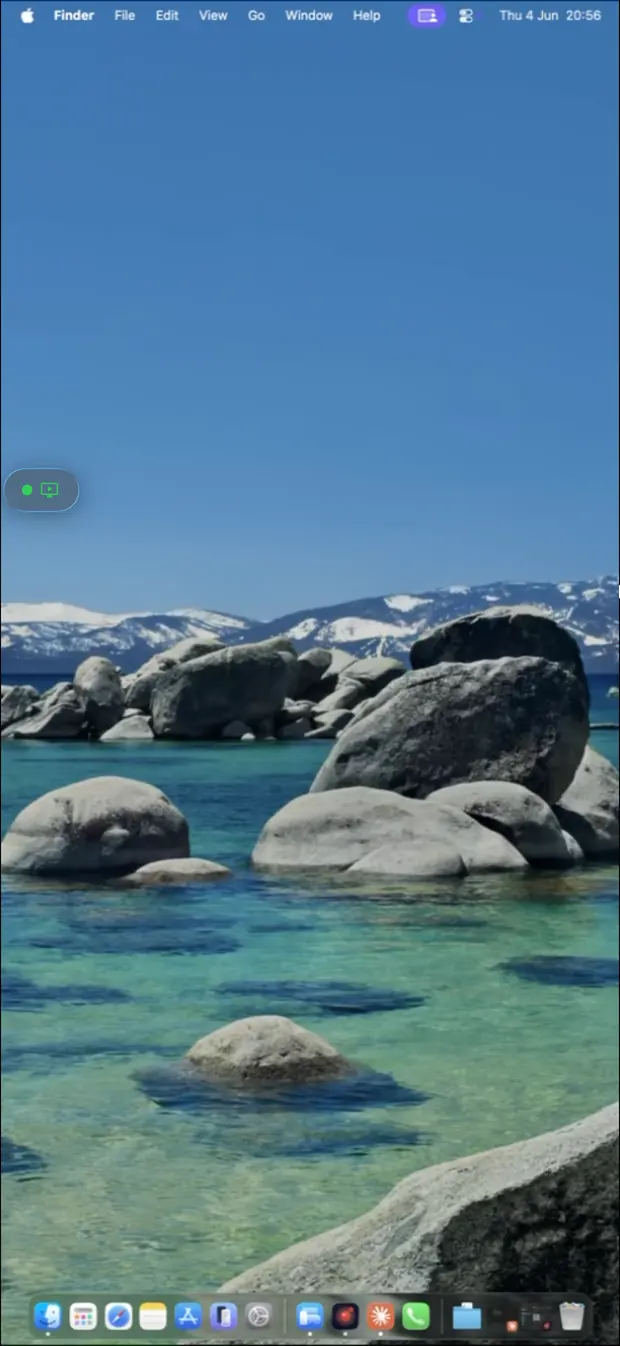
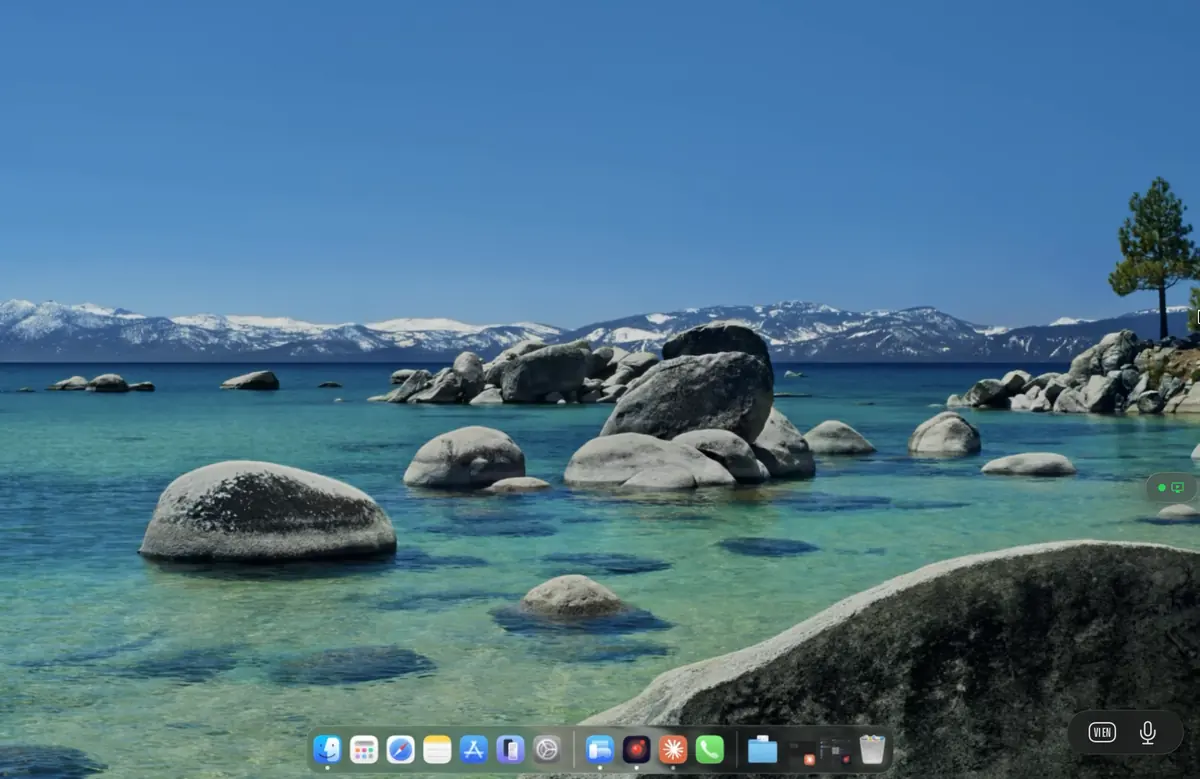
Remio is a native iOS app — not a browser tab, not an Electron wrapper. Install Remio Host on the Mac, install Remio on your iPhone, pair once with a one-time 4-digit PIN. The screen becomes a trackpad, the iOS keyboard speaks Cmd and Opt, and the Mac’s audio comes with you. No iCloud, no Apple ID, no signup wall.

Honest sizing

What an iPhone-sized Mac is actually good for.

Honesty first: a 6-inch window onto a 27-inch desktop is not where you do all-day work — that is what the iPad client or another Mac is for. What the iPhone is, is the remote control that is always in your pocket. Remio’s pinch-zoom, pan, and true-trackpad input make minutes-long sessions genuinely comfortable — and minutes are all most of these jobs need.

01
Builds, renders, exports

Kick off the render, then leave the desk

You are halfway out the door and remember the overnight export in Final Cut, the Xcode archive, the batch in Compressor. Pull out your iPhone in the elevator, open Remio, hit go. The job is running by the time you reach the street — and you can glance at the progress bar from anywhere, as often as you like, without carrying a laptop for the privilege.

02
File transfer

Grab a file off the Mac and send it on

The contract is on the Mac’s desktop and the person who needs it is in your Messages thread. Connect, pull the file to your iPhone over Remio’s file transfer — it rides the same end-to-end encrypted channel as the session — and send it straight from the phone. No cloud-drive detour, no emailing yourself, no asking whoever is home to go find it.

03
Stuck apps

Restart a stuck app in forty seconds

Mail has beachballed, the sync agent is wedged, the screen share for tonight’s call refuses to start. Connect from the phone, force-quit (Cmd+Opt+Esc works from the keyboard’s modifier row), relaunch, watch it come back healthy, pocket the phone. The alternative was doing it at 11 PM when you finally got home.

04
Long downloads

Check on the download you started this morning

The 80 GB game, the dataset, the macOS update you kicked off before leaving — open the session, glance at the progress bar, close it. Ten seconds of connection instead of an evening of wondering, and if the download has stalled you can nudge it back to life on the spot.

05
Approvals

Approve the dialog that is holding everything up

An installer waiting on an admin password, a Gatekeeper prompt, a “Keep both?” dialog blocking a 200-file copy. Zoom in, tap once where the pointer rests, and the Mac gets on with its work — while you stay at lunch, in the meeting, or 500 miles away.

Touch input on a desktop

Input that doesn’t fight you.

macOS assumes a mouse. Your iPhone has no mouse. Remio’s answer is to make the screen behave like a giant trackpad — taps click where the pointer is, not where your finger lands — with a direct-touch mode one toggle away when you would rather tap exactly what you see. The gestures below are the same ones the iPhone client uses against a Windows host, so nothing has to be relearned.

01
One-finger pan

Move the cursor by sliding your finger

A single finger on the screen drives the Mac cursor like an indirect trackpad — your finger does not have to be on top of the click target. Lift, reposition, slide again. The cursor accelerates the way you expect on macOS, with the same Apple Pointer acceleration curve, so muscle memory carries over from your trackpad.

Single tap clicks where the cursor is resting. Double tap double-clicks. Tap-and-drag with one finger drags the window or selects text, exactly as on a Mac trackpad.

02
Two-finger tap = right-click

Every Mac menu, one tap away

macOS lives by its right-click menus — Get Info on a file, Rename in Finder, Inspect Element in Safari, Options on a Dock icon. Remio maps a two-finger tap to right-click, the same gesture you already use on a Mac trackpad and Magic Mouse, so the muscle memory is already there.

Two-finger scroll forwards a smooth-scroll mouse wheel event to the focused Mac app, so PDF viewers, web pages, and code editors scroll naturally. A three-finger drag picks up and moves the cursor without holding down a button — ideal for resizing windows on a small phone screen.

03
Pinch to zoom the canvas

Zoom into a corner of the desktop without losing context

Mac desktops are big — a Studio Display is 5120×2880, a MacBook Pro is 3456×2234. Your iPhone is small. A two-finger pinch zooms the streaming canvas, not the Mac display itself, so you can magnify a small UI control to tap it accurately without rearranging your desktop or changing scaling settings on the Mac side.

A two-finger spread back to baseline restores the full desktop view. Zoom level and pan position are remembered between sessions, so if you always work zoomed into the corner of the screen where the build log lives, that is what you come back to.

04
No physical mouse

The cursor never disappears, even when your finger lifts

A real mouse has a persistent position even when you are not touching it. A finger does not. Remio handles the absent-physical-mouse problem the same way iPadOS does — an always-visible cursor that fades back to its last position when you lift off, so you can plan your next move before placing your finger again.

Hover states work too. Modern macOS controls (the Safari tab close button, Xcode’s jump-bar popovers, the green traffic-light button revealing its full-screen options) reveal themselves on mouse-over. Remio forwards a synthetic hover from your last touch position so those hover-triggered UI elements appear without needing a click first.

05
Keyboard & modifiers

The iOS keyboard, speaking fluent Mac

Tap the keyboard icon and the on-screen iOS keyboard slides up with a modifier row above it — Cmd, Opt, Ctrl, and Shift you can hold while tapping letters, so Cmd+C, Cmd+Tab, and Cmd+Space land on the Mac exactly as written. Every key maps to a native macOS key event — arrow keys, function row (F1–F12), Esc — and a long-press on the iOS keyboard gives accented or special characters.

Hardware keyboards forward natively too: pair a Magic Keyboard or any Bluetooth keyboard with the iPhone and the Mac sees a real keyboard, modifiers and all.

Setup

Set it up in five minutes.

Two installs, one PIN, no account. The only platform-specific work is granting the Mac’s two privacy permissions — once.

01
Step 01 — Mac host

Install Remio Host on the Mac

On the Mac you want to reach (macOS 15 Sequoia or later), download Remio-Host.pkg from remio.net/download — signed and notarized by Apple, so Gatekeeper opens it without warning. Launch Remio Host once; it parks in the menu bar.

macOS will prompt for two permissions: Screen Recording (System Settings → Privacy & Security → Screen & System Audio Recording → toggle Remio Host on) and Accessibility (System Settings → Privacy & Security → Accessibility → toggle Remio Host on). Without the first the host has nothing to send; without the second your taps and keystrokes from the iPhone do nothing. After enabling each toggle, quit and relaunch the host — macOS only picks up new permissions on app restart. You do this once.

02
Step 02 — iPhone client

Install Remio on your iPhone from the App Store

Search “Remio” in the App Store on your iPhone (iOS 18 or later), or open remio.net/download on the phone to land directly on the App Store page. Install takes seconds.

Launch the app — no signup, no email confirmation, no onboarding tour. It opens straight to a pairing screen with a number pad and a QR scanner.

03
Step 03 — Pair

Pair with the 4-digit PIN

Click the Remio Host menu bar icon on the Mac and select Show pairing PIN. A panel appears with a one-time 4-digit code and a QR code. On the iPhone, scan the QR with the built-in scanner — or just type the four digits.

Pairing completes in under a second. The PIN is single-use and the pairing request expires in 60 seconds, so a code that leaks is worthless moments later. The relationship between the iPhone and the Mac is permanent until you revoke it from the host menu bar — no account, email, or password was created at any point.

04
Step 04 — Connect

Tap the Mac and stream

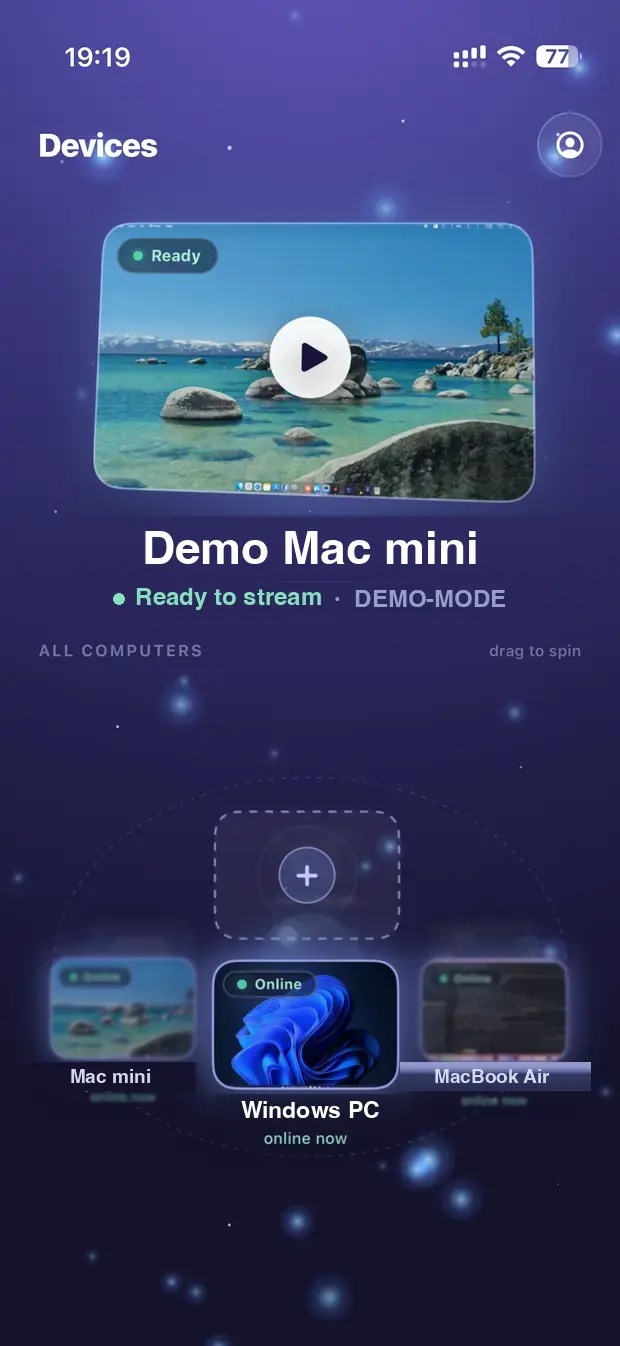
The Mac now shows up in the iPhone app as a named device. Tap it. Remio works out the best route automatically — a direct peer-to-peer connection on the same network (under 5 ms), or an encrypted relay if a direct path is not available. The session opens with the Mac’s audio in sync.

Next time, the Mac is one tap away. No PIN to retype, nothing to sign back into.

05
Step 05 — Optional

Unattended access and Wake-on-LAN

If the Mac lives somewhere nobody sits — a desk at home while you are out, an office after hours — enable unattended access on the host so you can connect without someone clicking accept on the other end. Pair it with Wake-on-LAN and a sleeping Mac at home still answers: the iPhone wakes it, then connects, and you are on its desktop a few seconds later.

On a desktop Mac, also open System Settings → Energy and enable Wake for network access so the host responds instantly when the client knocks.

Network & security

Works from anywhere, end-to-end encrypted.

A phone is the device most likely to be on a network you do not control — cellular on the train, the hotel’s Wi-Fi, a conference’s captive portal. Remio is built for exactly that, with no router homework and no account standing between you and your Mac.

01
P2P with NAT traversal

No port forwarding, no VPN — 5G and hotel Wi-Fi just work

Remio connects the iPhone and the Mac peer-to-peer, and NAT traversal does the hole-punching automatically — no router configuration, no port forwarding, no VPN profile on the phone. Cellular, 5G, and hotel Wi-Fi behave the same as your home network: open the app, tap the Mac, you are in.

If a direct path is genuinely impossible, an encrypted relay carries the session instead. The relay sees only opaque packets — it cannot read your stream — and the moment a direct path becomes available, the session uses it.

02
Encryption without accounts

AES-256-GCM, with keys that never leave your devices

Every session is end-to-end encrypted with AES-256-GCM, with ECDHE key exchange over Curve25519. The keys are derived between your two devices and never leave them — Remio’s server only introduces the devices and cannot decrypt the stream.

There is no iCloud, no Apple ID, and no Remio account anywhere in the flow. The one-time 4-digit PIN brokers the trust, the 60-second expiry keeps it tight, and everything after that lives only on the two paired devices.

03
Latency

Sub-5 ms LAN · 22 ms WAN same-region — verified May 2026

On the same network, input-to-pixel latency measures under 5 ms; across the internet within the same region, typical sessions measure 22 ms. Both figures were last verified in May 2026 — the benchmarks page documents the methodology.

In practice that means the pointer tracks your finger, scrolling is smooth, and a forty-second intervention actually takes forty seconds.

04
Audio comes through

The Mac’s sound, on your iPhone

Whatever the Mac is playing streams to the iPhone in sync with the video — the export-finished chime, the voice memo you need to check, the video whose audio tells you whether the render came out right. iPhone speaker or AirPods, your choice.

Real-world pairings

Common setups.

The same two apps, three very different pockets. If one of these looks like your week, the five-minute setup above is all that separates you from it.

Headless Mac mini at home, iPhone anywhere

A Mac mini with no monitor runs the backups, the media library, the odd overnight build — and your iPhone is the only screen it ever needs. Enable unattended access, add Wake-on-LAN, and the mini answers from wherever you are. The freelancers page shows this Mac-at-home, work-from-anywhere setup as a full workflow.

The studio Mac, checked from the couch

The Mac Studio upstairs is rendering, exporting, or seeding tonight’s upload. From the couch or the kitchen, a ten-second session confirms the progress bar is still moving — no stairs, no waking the laptop. On the same Wi-Fi the connection runs under 5 ms, so the quick check feels like holding the Mac in your hand.

Picking the right client

iPhone vs iPad vs another Mac as the client.

An honest sizing guide. The iPhone — this page — is the pocket option: always with you, perfect for the five-minute check, the restart, the approval, the file grab. For real work sessions — an hour of writing, a design review, Xcode on the couch — the iPad’s larger canvas, Magic Keyboard, and Apple Pencil make it the better client: see connect an iPad to a Mac. And desk-to-desk, when both machines have keyboards and big displays, Mac-to-Mac is the most natural pairing of all — the Mac-to-Mac setup guide covers it.

Same host app, same one-time 4-digit pairing, same end-to-end encryption in every case. The only choice is which screen happens to be in front of you.

FAQ

Things people ask first.

Five questions the iPhone-to-Mac direction tends to raise — honest answers below.

No. Remio does not use iCloud, Apple ID, or any identity service — and there is no Remio account to sign up for either. Pairing is purely local: the Mac shows a one-time 4-digit PIN, you type it into the iPhone app, and the pairing request expires in 60 seconds if unused. No email, password, or profile is created at any point.
Yes. Remio connects your iPhone and your Mac peer-to-peer with end-to-end encryption and needs no port forwarding, no VPN, and no router configuration — 5G, LTE, and hotel Wi-Fi all work. If a direct path is not available, the session falls back to an encrypted relay that cannot read your stream. Data usage depends on the quality settings you choose in the session toolbar — drop the resolution or frame rate on a metered plan and the stream slims down to match.
Yes. Hardware keyboards (a Magic Keyboard or any Bluetooth keyboard paired with the iPhone) forward natively as a real Mac keyboard. The on-screen iOS keyboard maps every key to a native macOS key event — arrow keys, function row (F1–F12), modifiers (Cmd, Opt, Ctrl, Shift), and shortcuts like Cmd+C, Cmd+Tab, Cmd+Space. Long-press a key on the iOS keyboard for accented or special characters.
Yes. Enable Wake-on-LAN and the iPhone client can wake a sleeping Mac before it connects — useful for a Mac mini at home that naps between sessions. On a desktop Mac, also turn on Wake for network access in System Settings → Energy so the host answers instantly. The Wake-on-LAN guide covers the setup step by step.
Yes. Remio is completely free — every feature, on every platform. The iPhone client, the Mac host, 4K streaming, audio, clipboard sync, file transfer, unattended access, Wake-on-LAN, and end-to-end encryption are all included. There is no account and nothing held back.
Free, all features · no account · no card

Your whole Mac, one tap away.

Install Remio Host on the Mac you want to reach. Install Remio on your iPhone from the App Store. Pair once with a one-time 4-digit PIN — that is the whole setup, and it costs nothing.

macOS 15+ host · iOS 18+ client · free, no account, no card.