Android · Windows remote desktop

Your Windows PC, on any Android screen.

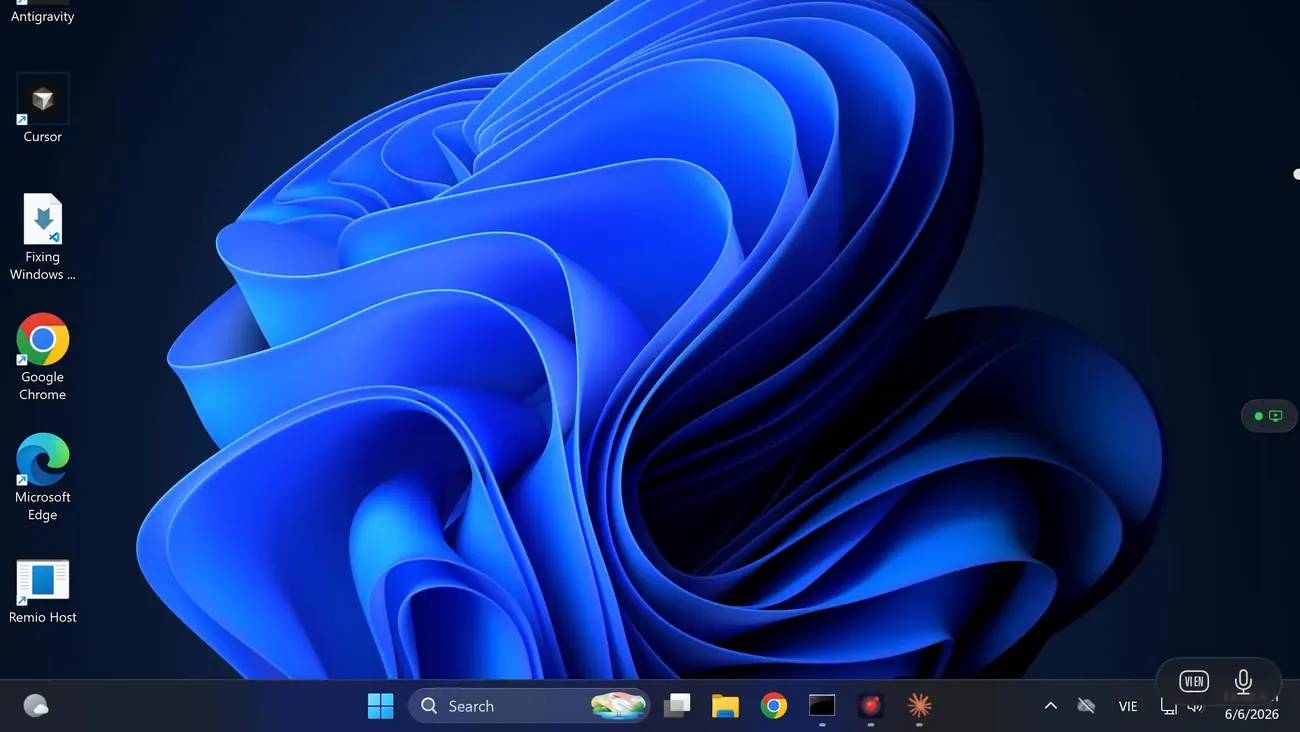
Remio for Android is a native Jetpack Compose app, and the Remio host is a native C++/WinRT app for Windows 10 and 11 — Home editions included. Pair once with a 4-digit PIN, and your full Windows desktop streams to a Pixel, a Samsung Galaxy tablet, a OnePlus foldable, or any Android 10+ device. No Microsoft account, no Google account, no RDP — and completely free, every feature included.

Why this pairing matters

The desktop is Windows. The device you carry is Android.

It is the most common cross-platform reach there is: the machine with the GPU, the files, and the installed software sits at a desk running Windows, and the screen in your pocket runs Android. Microsoft’s own answer wants a Pro edition on the host; Google’s wants a Google account on both ends. Remio asks for neither.

No Microsoft account — no account of any kind
Remio has no sign-up flow on either end. The Windows host shows a 4-digit one-time PIN with a 60-second window; type it into the Android app once and the devices exchange keys and remember each other. No email, no password, no profile — there is no central user database to breach, because there are no users to store.
No RDP — so Windows Home works
The built-in Remote Desktop host is reserved for Pro, Enterprise, and Education editions; Home PCs refuse inbound RDP entirely. Remio ships its own native host, so the edition restriction never comes into play — a Windows 11 Home machine hosts exactly as well as a Pro one. The full story lives on the Windows 11 Home remote desktop page.
No Google account either
Chrome Remote Desktop solves the same reach by signing both machines into Google and relaying through Google servers. Remio connects your devices to each other — peer-to-peer, end-to-end encrypted, with no identity service in the loop. Your Android device does not need to tell anyone who it belongs to before it can show you your own desktop.
Carry the desktop without carrying the machine
Check on a long render from the kitchen, grab a file you forgot from the train, play a round on the gaming PC from the couch, or fix a relative’s machine from your own living room. The PC stays where the power and the Ethernet are; the session goes wherever your phone or tablet goes.
Native, not a port

A native Android client, not a web wrapper

Remio for Android is written in Kotlin 2.1 with Jetpack Compose. There is no WebView, no embedded browser, no cross-platform glue layer between your tap and the pixels on your screen. It runs the way Android itself runs — and it treats a phone, a tablet, and a foldable as the different devices they are.

01
Reason 01 — Kotlin 2.1 · Compose BOM 2025.06.00

Built on the same toolchain Google ships its own apps with

The app targets Kotlin 2.1 and Compose BOM 2025.06.00 — the same modern stack Google uses for Pixel system apps. The UI thread runs at 60 fps, scroll animations stay smooth under streaming load, and the app launches in well under a second from a cold start. No Flutter render bridge, no React Native bridge, no compromise.

Tested on Pixel 6, 7, 8, and 9; Samsung Galaxy S22, S23, and S24; Galaxy Tab S8 and S9; and OnePlus and Xiaomi flagships. Anything newer than five years old with a modern hardware decoder should run Remio at full 60 fps. Older devices may still work but will fall back to software paths and warmer batteries.

02
Reason 02 — MediaCodec hardware decode

Hardware decode through MediaCodec — the chip does the work

Video frames hit the device, get handed to Android’s MediaCodec API, and the SoC’s dedicated H.265 or H.264 decoder turns them back into pixels. The CPU stays cool, the battery stays full, and the stream sustains a real 60 fps instead of a stuttering 30. A dedicated SurfaceView renders the decoded frames straight to the display compositor — no texture copy, no extra blit, no Compose layer in the hot path.

On the other end, the Windows host captures through DXGI and encodes on whatever hardware encoder the PC already has — NVENC on NVIDIA, AMF on AMD, Quick Sync on Intel. Hardware encode on the PC, hardware decode on the phone: the streaming pipeline never touches a CPU software path on either side.

03
Reason 03 — Input that translates cleanly

Touch, S Pen, keyboards, and mice — forwarded as the real thing

Touch lands in Windows apps as pointer input: two-finger scroll drives smooth scrolling, pinch zooms, long-press becomes a right-click. On a Galaxy Tab S8 or S9, S Pen strokes forward to the PC as pen input with pressure and tilt, so sketching and annotating in apps on the Windows side respond to how hard you press — not a synthetic single-pressure mouse stream.

Pair a Bluetooth keyboard or mouse with the Android device and every keystroke, modifier, scroll tick, and side button lands on the PC as a real input event. Clipboard, audio, and file transfer travel both ways inside the same encrypted session — copy on one device, paste on the other; play audio on the PC, hear it on the phone.

Touch as pointer input — scroll, pinch, long-press right-click, all mapped to Windows
S Pen with pressure and tilt — forwarded to the host as pen input on Galaxy tablets
Bluetooth keyboards and mice — native key events and precise pointer motion, modifiers included
The Windows side

A native Windows host — Home editions included

The half that runs on the PC is just as native as the Android half. No Electron shell, no patched system files, no edition check — and nothing held back. Here is the factual record.

01
Runs on Home, by design

A native C++/WinRT host — not a patch, not Electron

The Remio host is a native Windows app built with C++/WinRT, and it runs on Windows 10 (build 19041+) and Windows 11 — Home editions included. It never touches the Terminal Services binary, edits the registry to fake an edition, or depends on anything Microsoft reserved for Pro. It captures through DXGI and encodes on the PC’s own hardware encoder, sits in the system tray, and never asks which edition you run.

02
No Microsoft account · no any account

Pair with a 4-digit one-time PIN — 60-second window

The host shows a 4-digit one-time PIN; type it into the Android app and the pairing request expires in 60 seconds if unused. The devices exchange keys and remember each other — reconnects are one tap, and no email, password, or profile ever exists. A code that leaks is worthless moments later.

03
End-to-end encrypted

AES-256-GCM with ECDHE-Curve25519 key exchange

Sessions are encrypted end-to-end with AES-256-GCM, and keys are negotiated directly between your devices over ECDHE on Curve25519. Keys never leave the endpoints, so when a relay is needed to cross a strict NAT, it forwards ciphertext it cannot read. The full model is documented on the security page.

04
Measured, not marketed

Sub-5 ms LAN · 22 ms WAN same-region — verified May 2026

On the same network, input-to-pixel latency measures under 5 ms; across the internet within the same region, typical sessions measure 22 ms. Both figures were last verified in May 2026. Streams run up to 4K at 120 fps with 4:4:4 chroma sampling — text stays sharp because color detail is never thrown away — with multi-monitor support and audio in sync.

05
Completely free

Every feature, every platform — $0

Remio is completely free, and every feature ships in the one build everyone gets: unattended access, multi-monitor, audio, file transfer, Wake-on-LAN, 4K streaming, end-to-end encryption. There is no feature gate and no usage detector deciding you owe money — on the Android side or the Windows side.

Setup

Set it up in five minutes

No sign-up screen, no email verification, no router configuration. Two installs, one PIN, and your Windows desktop is in your hand.

Step 01 · Install the Remio host on the Windows PC
On the Windows 10 (build 19041+) or Windows 11 PC you want to reach — Home edition is fine — download the Remio host from the download page and run the installer. Accept the one-time Windows Defender Firewall prompt when it appears. The host sits in the system tray, waiting.
Step 02 · Install the Remio client on your Android device
On the Android 10+ phone, tablet, or foldable, install the free Remio client from the Play Store or follow the link from the same download page. There is no Google account binding on first launch — the app needs nothing more than the device itself.
Step 03 · Pair with the 4-digit PIN
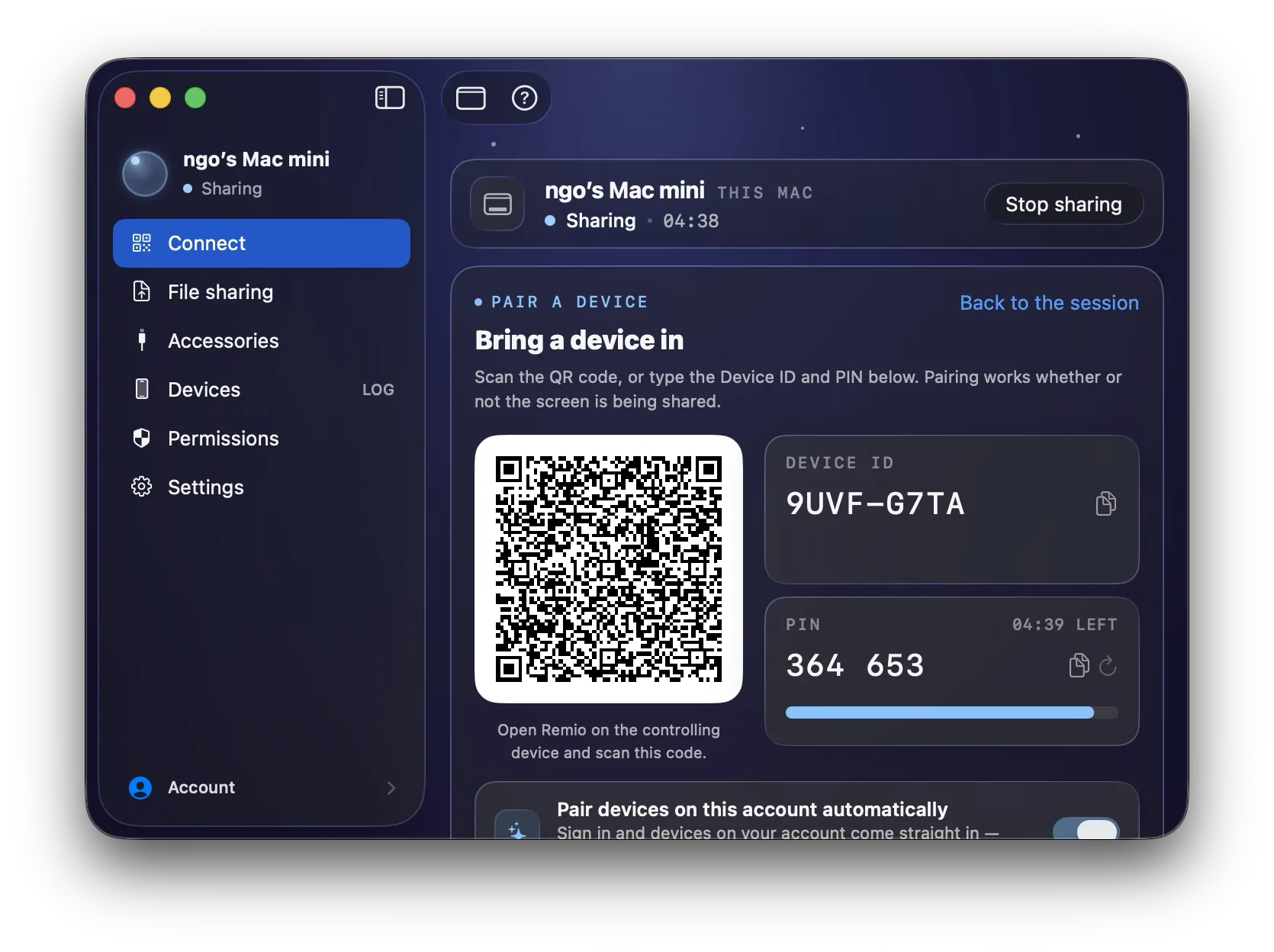
The host displays a 4-digit one-time PIN. Type it into the Android app — the pairing request expires in 60 seconds — and the devices exchange encryption keys over ECDHE-Curve25519 and remember each other. Reconnections from then on are instant, with no PIN required.
Step 04 · Connect
Tap the PC in the device list and the full Windows desktop appears — audio in sync, multi-monitor supported, end-to-end encrypted, up to 4K 120 fps when the hardware allows. Rotate to landscape and the desktop fills the screen at its native aspect.
Optional · Unattended access and Wake-on-LAN
Flip on unattended access in the host settings to connect without anyone clicking Accept at the PC, and enable Wake-on-LAN to wake the machine from sleep before you connect. Both are included — free, like everything else.
Common setups

Three ways people actually use this pairing

The same two apps, the same PIN, three very different evenings. Whatever the Windows PC is for, the Android device in your hand becomes its second screen.

The gaming PC, reached from the couch

The tower with the GPU stays at the desk; the Galaxy Tab comes to the sofa. Hardware encode on the PC and hardware decode on the tablet keep the stream at full frame rate, so the game feels played, not watched. The gaming page covers codecs, controllers, and latency in depth — and the same idea on Apple glass is in playing PC games on an iPad.

The work PC, checked from your phone

The export is still running, the file you need lives on the desktop, the app that matters only runs on Windows. Pull out the Pixel, tap the PC in the device list, and you are looking at the real desktop in seconds — over mobile data, end-to-end encrypted, with the clipboard syncing both ways. Check it, fix it, close the session, get on with your evening.

The family PC, supported from your Android

When the call starts with “the computer is doing something weird,” connect to the family Windows machine from the phone or tablet you are already holding. Unattended access means nobody on the other end has to click anything. How that works at helpdesk scale is on the IT support page; the family-sized version is in fixing your parents’ computer from 500 miles away.

Side by side

Android-to-Windows vs the usual suspects

Two apps dominate this pairing: Microsoft’s Remote Desktop client and Chrome Remote Desktop. Both are legitimate tools — here is where each one’s requirements bite, honestly laid out.

Capability Remio Microsoft Remote Desktop app Chrome Remote Desktop
Hosts a Windows Home PC? No — the RDP host requires Pro, Enterprise, or Education on the PC Yes — installs its own host
Account required Windows account with a password on the host; Microsoft account for some flows Google account on the host and every device you connect from
Streaming fidelity Solid on a LAN; frame rate typically capped near 30 fps by default Browser-grade pipeline — tops out around 30 fps
Connection path Typically needs port forwarding (TCP 3389), a VPN, or RD Gateway Relays through Google servers
Price for this pairing App is free; hosting from Home means the $99 Pro upgrade first Free

Want the full matrices — codecs, input handling, and where each rival genuinely wins? See Remio vs Microsoft Remote Desktop and Remio vs Chrome Remote Desktop — or, if you are migrating, the Chrome Remote Desktop alternative guide.

FAQ

Questions Android users ask first

Five common questions about reaching a Windows PC from Android — honest answers, no marketing fluff.

Yes. Remio brings its own native host, so the Home edition restriction on built-in Remote Desktop never comes into play. The host runs on Windows 10 (build 19041+) and Windows 11 — Home editions included — with no Pro upgrade, no registry patches, and no edition check. Every feature works on Home, free.
No account of any kind — no Microsoft account, no Google account, and no Remio account either. The Windows host shows a 4-digit one-time PIN that expires in 60 seconds; type it into the Android app once and the two devices exchange encryption keys and remember each other. No email, no password, no profile.
Yes. After the first pairing, the Android client reaches your Windows PC over mobile data or any Wi-Fi network using peer-to-peer NAT traversal, with an encrypted relay as fallback when a direct path is impossible. Sessions stay end-to-end encrypted either way — a relay only ever forwards ciphertext it cannot read, and you never open ports or touch your router.
Android 10 (API 29) and later. Tested on Pixel 6, 7, 8, and 9; Samsung Galaxy S22, S23, and S24; Galaxy Tab S8 and S9; and OnePlus and Xiaomi flagships. Anything newer than five years old with a modern hardware decoder should run Remio at full 60 fps. Older devices may still work but will fall back to software paths and warmer batteries.
Completely free — every feature, for everyone. Unattended access, multi-monitor, audio, file transfer, Wake-on-LAN, 4K streaming, and end-to-end encryption all ship in the one build everyone gets. There is no feature gate, no trial clock, no usage detector, and no account to create.
Free, all features · no account · no card

Your Windows PC, one tap away

Install the Remio host on the Windows PC, install the Remio client on your Android phone or tablet, type a 4-digit PIN once. No Microsoft account, no Google account, no Pro upgrade, no open ports — just your desktop, end-to-end encrypted, on the screen you are already holding.

Host on Windows 10 (build 19041+) and Windows 11, Home editions included. Client on Android 10+ phones, tablets, and foldables. No account, no card.